How to solve the ‘Storage running Out of Space’ problem for Android

That dreaded “Storage Running Out of Space” notification — it always arrives at the worst possible moment. Mid-photo, mid-download, or right when you’re trying to install an update.
Here’s the thing most people don’t realise: you don’t need to delete everything you care about, and you definitely don’t need a new phone. In this post, I’ve broken down 7 tested methods to free up storage on your Android device — from quick wins you can do in under a minute to slightly deeper fixes that make a lasting difference.
Let’s get into it.
Why Is Your Android Storage Running Out?
Before jumping into fixes, it helps to understand what’s actually filling up your phone.
Your Android device has two types of memory working in parallel. RAM (Random Access Memory) handles active processing — it’s what your phone uses to run apps simultaneously. More RAM means smoother multitasking. When RAM gets overloaded, your phone starts to lag.
ROM (Internal Storage) is where everything lives permanently — your apps, photos, videos, downloads, and cached data. This is the one that throws the “Insufficient Space” error when it gets too full.
Most Android phones start struggling once internal storage crosses 80% capacity. The system needs breathing room to create temporary files, run updates, and keep things moving. When that room runs out, you feel it everywhere.
7 Methods to Free Up Storage on Android
1. Clear App Cache
This is usually the single biggest quick win — and most people never bother with it. Every app on your phone quietly accumulates cache data in the background, and some apps are far greedier about it than others.
What is cache, exactly?
When you open an app, it fetches images, resources, and data from its servers. To avoid making that same request every time, it saves a local copy on your device — that’s cache. Smart in theory, but apps don’t always clean up after themselves. Over time, outdated and redundant cache files pile up and eat into your storage without you noticing.
How to clear cache on Android
- Long-press the app icon in your App Drawer or Home screen.
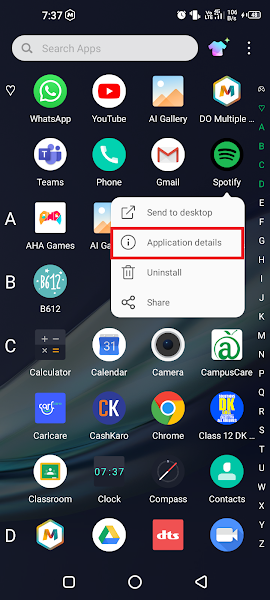
- Tap Application details from the mini-menu that appears.
- Tap Storage & Cache.
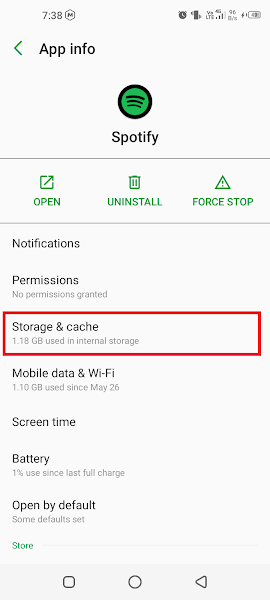
- Tap CLEAR CACHE.
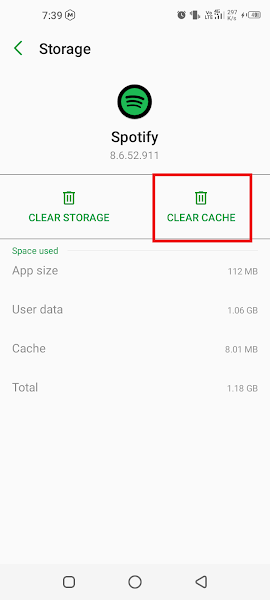
Pro tip: Start with the usual heavy hitters — Chrome, YouTube, Instagram, Spotify, and Google Maps tend to accumulate the most cache. Check those first before working through the rest of your app list.
2. Clean Junk Files
Junk files are the digital equivalent of dust under your couch — residual files, temporary installation data, and leftover fragments from apps that have since been deleted. They serve no purpose but they absolutely take up space.
Which cleaner app should you use?
Stick to the built-in cleaner that came with your phone. Avoid third-party “junk cleaner” apps from the Play Store — many don’t actually clean much, and a significant number have been flagged as adware or outright malicious. Your phone manufacturer’s cleaner (called “Phone Manager”, “Device Care”, “Cleaner”, or similar depending on your brand) is the safer and more effective choice.
- Find and open the built-in Junk File Cleaner or Phone Manager app on your device.
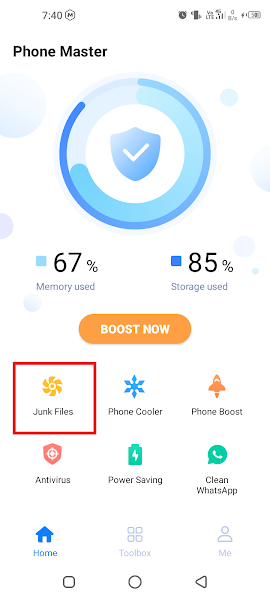
- The scan runs and presents a list of junk files with how much space each category consumes.
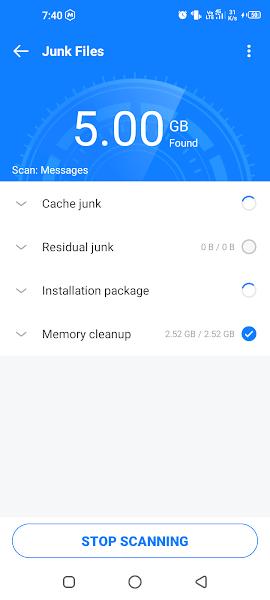
- Before tapping Clean, scan the list quickly. If anything looks important, uncheck it.
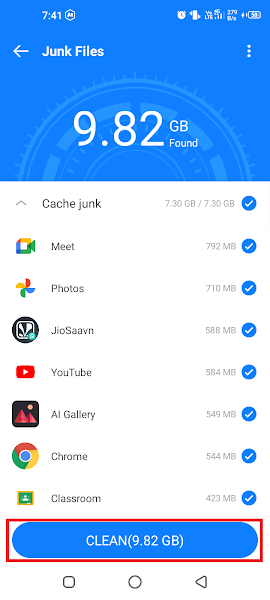
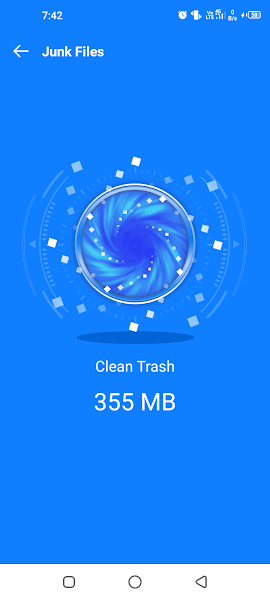
- Tap Clean — space reclaimed instantly.
3. Turn Off WhatsApp Auto-Download
If you’re in even two or three active WhatsApp groups, your phone is silently hoarding gigabytes of “Good Morning” images, forwarded videos, and voice notes you’ll never listen to. Auto-download is on by default — and it’s one of the sneakiest storage drains on most Android phones.
- Open WhatsApp.
- Tap the three-dot menu (top-right) and select Settings.
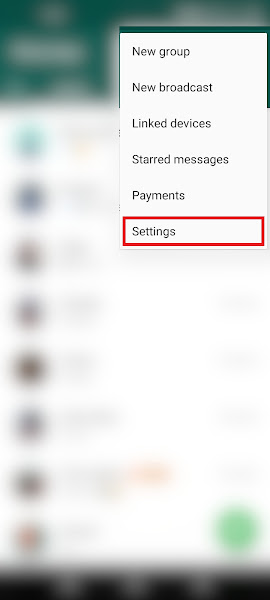
- Tap Storage and Data.
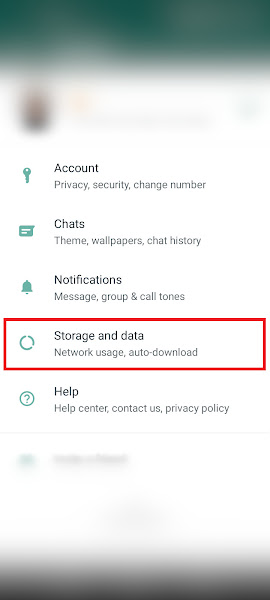
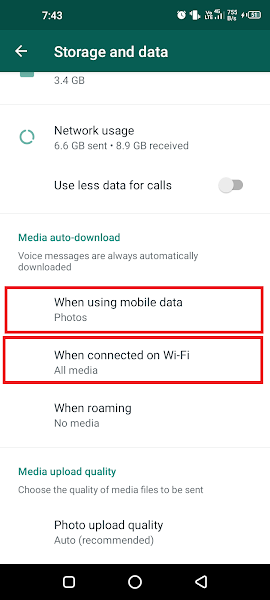
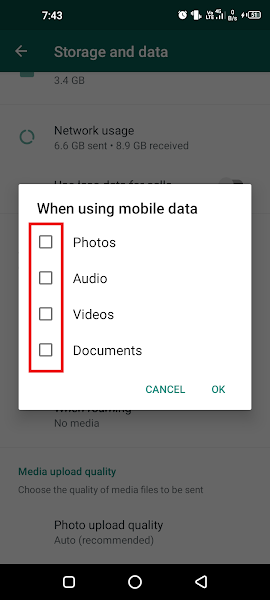
- Under Media Auto-Download, tap When using mobile data and uncheck all boxes.
- Go back and tap When connected on Wi-Fi — uncheck all boxes there too.
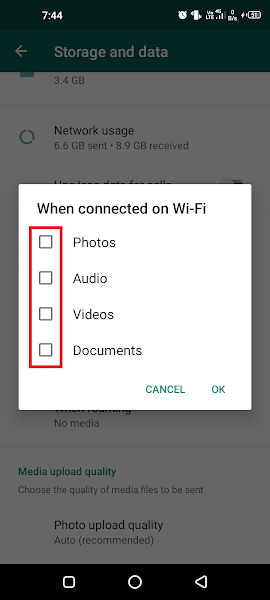
From now on, media only downloads when you choose to download it — tap to save what’s actually worth keeping, ignore the rest.
4. Disable Useless System Apps
Every Android phone ships with pre-installed apps — some essential, some you’ll genuinely never open. These system apps can’t always be uninstalled, but they can be disabled, which stops them running, clears their storage footprint, and removes them from your app drawer.
Good candidates: manufacturer’s duplicate apps (a second browser, a second email client, a built-in music player you don’t use), carrier-installed bloatware, and any Google app that duplicates functionality you have covered elsewhere.
⚠️ Important: Don’t disable anything you’re not sure about. Disabling core system components like Settings, Phone, or Contacts can break your device. If in doubt, leave it enabled.
- Long-press the system app icon on your Home screen or App Drawer.
- Tap Application details.
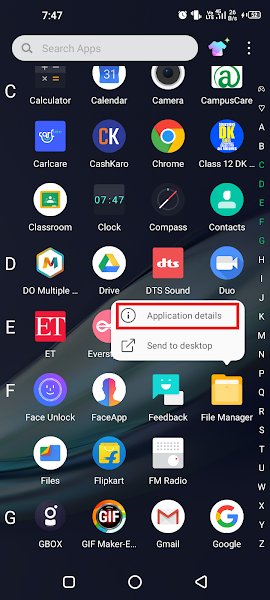
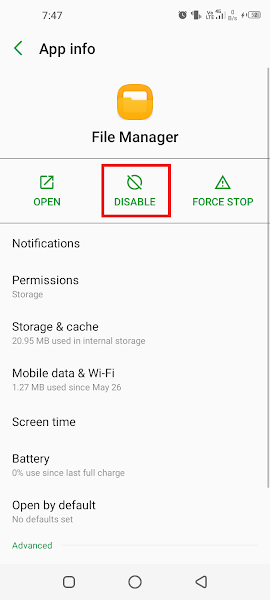
- Tap the DISABLE button.
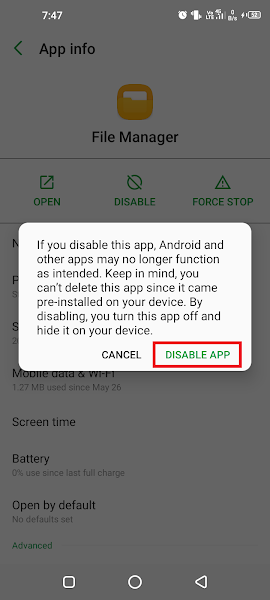
- Confirm by tapping Disable again in the dialog.
After disabling, go back into the app’s Storage settings and clear its cache and data too — that squeezes out every last bit of reclaimed space.
5. Uninstall Unused Apps
Be honest — how many apps on your phone haven’t you opened in the last three months? We’ve all installed something for a one-time task and completely forgotten about it. Games, travel apps, event apps, tools for projects that wrapped up months ago.
Do a quick audit of your App Drawer and uninstall anything you no longer actively use. You’ll often recover 500–600 MB or more without touching anything you’d miss.
Tip: Go to Settings → Apps and sort by storage size — that surfaces the biggest space hogs at the top so you can prioritise what to cut first.
6. Delete Duplicate and Unnecessary Files
Your gallery is probably full of near-identical photos from burst shots, screenshots you no longer need, downloaded PDFs from six months ago, and duplicate files from backups or transfers.
Open your phone’s File Manager and spend five minutes going through your Downloads folder, Documents folder, and WhatsApp Media folder. Some phones also have a built-in “Suggestions” feature under Storage settings that automatically flags large or duplicate files for review.
7. Stop Apps Running in the Background
This one won’t free up internal storage directly, but if your phone feels sluggish even after clearing space, background apps are usually the culprit.
When you “close” an app by pressing back or switching away, it doesn’t always actually stop — it keeps running silently, consuming RAM and draining battery. That’s why your phone sometimes feels hot for no obvious reason, or the battery drops faster than expected.
Go to your recent apps view and swipe away anything not in active use. For a permanent fix, go to Settings → Apps → [App Name] → Battery and restrict background activity for apps that don’t need it.
8. Use an SD Card for Extra Storage
If your phone has a microSD card slot, this is the most cost-effective way to dramatically expand available storage. A 64GB or 128GB card costs very little and gives you a dedicated home for photos, videos, music, and documents.
The smartest approach: move existing media files to the SD card, and use freed-up internal storage for apps — since most Android apps can only be installed to internal storage anyway.
To use the SD card for app installations, configure it as internal storage via Settings → Storage → Format as Internal — but note this permanently formats the card and ties it to your specific device.
Frequently Asked Questions
Q: How do I fix “Storage Running Out of Space” on Android?
A: Start with the three fastest fixes: clear app cache (especially Chrome, YouTube, Instagram), clean junk files using your phone’s built-in cleaner, and turn off WhatsApp auto-download. Together those three steps typically recover several gigabytes without deleting anything important.
Q: Will freeing up storage make my Android phone faster?
A: Yes — noticeably. Clearing 500MB or more typically produces visible improvement in app load times and overall responsiveness. Most phones start struggling once internal storage crosses 80% capacity — the OS needs free space to write temporary files and manage processes smoothly.
Q: How do I identify which apps I don’t need anymore?
A: Go to Settings → Apps and sort by Last used. Any app you haven’t opened in 30+ days is a solid uninstall candidate. Also sort by storage size to find the biggest space consumers first.
Q: Can I use an SD card to install apps on Android?
A: You can format an SD card as internal storage via Settings → Storage → Format as Internal, but the simpler approach is to move media files to the SD card and use freed-up internal storage for apps. Formatting as internal permanently ties the card to your device and can cause compatibility issues.
Q: Why does my Android phone keep hanging or freezing?
A: In most cases this points to storage running critically low or RAM being overloaded by background apps. Try clearing cache, removing junk files, and closing background apps first — these three steps resolve the majority of hanging and freezing issues.
Q: Why do my call logs take forever to load?
A: Slow call log loading is a classic sign of near-full internal storage. Any app that reads or writes data will feel sluggish when the phone is gasping for space. Freeing up storage should resolve it.
Conclusion
Running out of storage on Android doesn’t have to mean a factory reset or a trip to the phone shop. A combination of clearing cache, removing junk, disabling unused system apps, and managing your media can recover several gigabytes without losing anything you actually care about.
The key is doing it regularly rather than waiting until the phone grinds to a halt. Even a 10-minute monthly cleanup keeps things running smoothly.
Stuck on any of the steps, or tried everything and still running low? Drop a comment and let’s troubleshoot it together.
Running a startup in India with a small team?
A slow phone isn’t just annoying — it’s a productivity tax. Research shows that device performance issues cost the average knowledge worker over 40 minutes per week in slowdowns, failed uploads, and interrupted workflows. Across a 5-person startup team, that’s 200 minutes of lost output every week before you’ve even started work.
Most Indian early-stage startups run on mid-range Android devices. Keeping those devices lean, fast, and secure isn’t just a personal tech tip — it’s an operational decision. We’ve put together a practical guide on building a lean device and productivity stack for Indian startup teams: the tools, habits, and configurations that keep a small team running fast without expensive MDM software.
Related Articles
Read next

What is Textra? A Complete Guide to Textra App
Your default SMS app works. But “works” is a low bar. Textra SMS is what happens when a developer spends […]
Read More
How to Delete an Android App
Storage getting tight? Fed up with an app you no longer use? Either way, uninstalling Android apps is something every […]
Read More
How to delete your Facebook and WhatsApp account permanently (Using your phone or PC)
If you’ve decided to leave WhatsApp or Facebook, there’s one thing worth knowing before you act: deleting the app is […]
Read More