How to check Your Android Version
Icons made by Roundicons from Flaticon
Android runs on more than 3 billion active devices worldwide, making it the most widely used operating system on the planet — not just for smartphones, but across tablets, smart TVs, watches, and cars. Yet most Android users have never checked which version their phone is running, or know what that version number actually means for their experience and security.
This guide covers everything: what Android is, a complete version history, what’s new in the latest release, how to check your version in three steps, and what to do if you’re running an older version.
What is Android?
Android is a mobile operating system developed by Google. It was originally created by Andy Rubin, Rich Miner, Nick Sears, and Chris White at Android Inc., which was founded in October 2003. Google acquired Android Inc. in 2005, and the first commercial version of Android — Android 1.0 — was released on September 23, 2008.
What makes Android unusual among operating systems is that it’s open-source. Google publishes the Android source code, which means device manufacturers like Samsung, Xiaomi, OnePlus, and hundreds of others can use it as the foundation for their own products and customise it with their own software layers. This openness is why Android powers such a wide variety of devices at every price point — from budget smartphones to flagship foldables to Android-based TVs.
What is the Latest Android Version?
The latest stable version of Android is Android 16, officially released on June 10, 2025. It’s the most widely used version of Android, running on 21.61% of Android devices as of early 2026. Its internal codename is “Baklava.”
Android 16 introduced several significant features including:
- Material 3 Expressive — a major visual redesign with more animation, colour, and blur effects
- Desktop windowing — open, resize, and group multiple app windows on larger screens and tablets
- Live Updates — track ride or delivery progress in real time directly from your notifications
- Notification auto-grouping — similar notifications are grouped together automatically to reduce clutter
- Advanced Protection Mode — strengthened security and data privacy settings
- Custom keyboard shortcuts — for faster navigation on larger screens
- Improved camera controls — night mode scene detection, hybrid auto-exposure, precise colour temperature adjustments
Complete Android Version List — Android 1.0 to Android 16
Google released Android versions with public dessert codenames up to Android 9 Pie. From Android 10 onwards, Google switched to plain number names for the public version — though internal codenames (like “Baklava” for Android 16) are still used during development.
Here’s the full Android version history:
- Android 1.0 — September 2008
- Android 1.5 Cupcake — April 2009
- Android 1.6 Donut — September 2009
- Android 2.0–2.1 Eclair — October 2009
- Android 2.2 Froyo — May 2010
- Android 2.3 Gingerbread — December 2010
- Android 3.0–3.2 Honeycomb — February 2011 (tablet-only)
- Android 4.0 Ice Cream Sandwich — October 2011
- Android 4.1–4.3 Jelly Bean — July 2012
- Android 4.4 KitKat — October 2013
- Android 5.0–5.1 Lollipop — November 2014
- Android 6.0 Marshmallow — October 2015
- Android 7.0–7.1 Nougat — August 2016
- Android 8.0–8.1 Oreo — August 2017
- Android 9 Pie — August 2018
- Android 10 — September 2019 (dessert names retired from public branding)
- Android 11 — September 2020
- Android 12 — October 2021
- Android 13 — August 2022
- Android 14 — October 2023
- Android 15 — October 2024
- Android 16 — June 2025 ✅ Current latest version
Why Does It Matter Which Android Version You’re Running?
Three reasons it’s worth knowing — and keeping updated:
Security: Each Android version includes security patches that fix vulnerabilities discovered since the previous release. Older versions that no longer receive updates are exposed to known security flaws that can be exploited by malicious apps or attackers.
App compatibility: Apps on the Play Store increasingly set minimum Android version requirements. If your phone runs a very old version, you’ll eventually find that new apps won’t install, and existing apps will stop receiving updates.
Features: Each version brings meaningful improvements — better privacy controls, faster performance, new camera capabilities, improved battery management. Staying updated means your phone works better, not just more securely.
How to Check Your Android Version — 3 Steps
Most Android phones follow the same path, though the exact menu labels vary slightly between manufacturers (Samsung, Xiaomi, OnePlus, etc.).
-
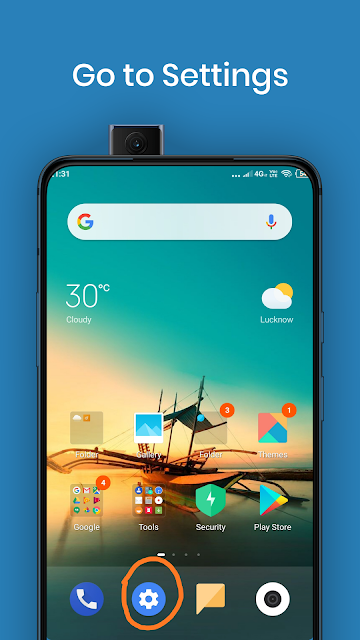
Open Settings on your Android phone — tap the gear icon in your app drawer or notification shade.
-
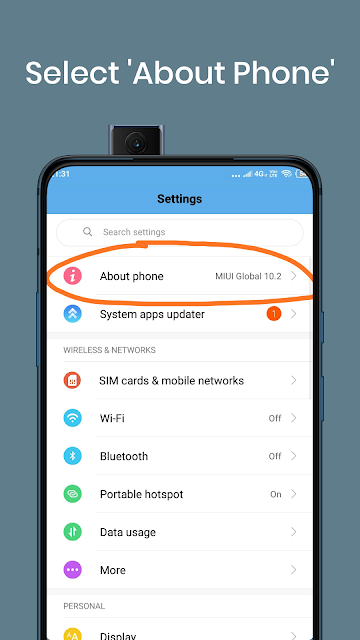
Scroll down and tap “About Phone” (sometimes labelled “About Device” or “About” depending on your manufacturer).
-
Tap “Android Version” to see your current version number. Your Android version and security patch level are displayed here.
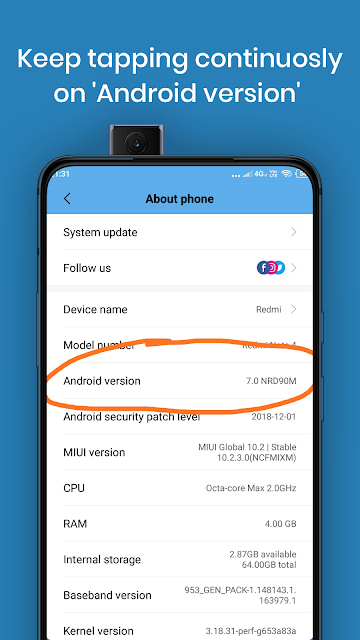
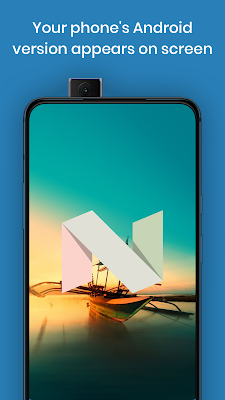
Bonus tip: On most Android phones, tapping the Android Version number repeatedly (5–7 times) triggers a hidden Easter egg — a small animation or mini-game Google hides in each version. Android 16’s is a spaceship minigame. Worth trying once.
How to Update Your Android Version
In most cases, Android updates arrive automatically and install in the background — you’ll see a notification to restart and apply the update. But you can also check for updates manually:
- Go to Settings → About Phone → System Updates (or Settings → System → System Update on some devices)
- Tap Check for Updates
- If an update is available, tap Download and Install
A few things worth knowing about updates:
- Google Pixel devices receive Android updates first — typically within days of release
- Samsung, OnePlus, and other manufacturers release updates on their own schedule, which can be weeks or months after the Pixel rollout
- Older devices may not receive the latest major Android version — manufacturers typically support devices for 3–4 years from launch
- Even if your device can’t update to the latest Android version, keep accepting monthly security patch updates — these are separate from version upgrades and protect against known vulnerabilities
Frequently Asked Questions
Q: What is the latest Android version in 2025?
A: The latest stable Android version is Android 16, released on June 10, 2025. It is currently the most widely used Android version globally. Android 17 is expected in mid-2026.
Q: Why did Android stop using dessert names?
A: From Android 10 onwards, Google dropped the public dessert names in favour of plain version numbers — citing that the codenames were confusing for users in markets where the desserts weren’t well-known. Google still uses internal dessert codenames during development (Android 16’s internal codename is “Baklava”), but these aren’t part of the official public branding.
Q: How do I know if my Android needs an update?
A: Go to Settings → About Phone → System Updates and tap Check for Updates. If an update is available, it will appear here. You can also check your current version under Settings → About Phone → Android Version and compare it to the latest version (Android 16 as of 2025).
Q: Is Android 16 available on all phones?
A: Android 16 launched initially for Google Pixel devices. Samsung, OnePlus, Motorola, and other manufacturers are rolling it out on their own schedules. Not all older devices will receive Android 16 — check your manufacturer’s update support page to confirm whether your device is eligible.
Q: What happens if I don’t update my Android?
A: Your phone will continue to work, but over time you’ll miss security patches that protect against known vulnerabilities, new apps may not support your older version, and existing apps may eventually stop updating too. It’s always worth updating when your device supports it.
Conclusion
Knowing your Android version is the starting point for understanding your phone’s capabilities, security status, and whether you’re eligible for updates. The three-step check takes under a minute, and it’s worth doing periodically — especially before troubleshooting an app issue or deciding whether to upgrade your device.
If your phone is running Android 12 or older and receiving no further updates from your manufacturer, it may be worth considering an upgrade — not because the phone stops working, but because unpatched security vulnerabilities accumulate over time and the gap in app compatibility will widen.
Have a question about your specific device’s update eligibility or a feature in a particular Android version? Drop it in the comments — happy to help.
Related Articles
Read next

Google's 3 Extensively Useful Services that you little know About
When people think of Google, they think of Search. Maybe Gmail. Maybe Maps. But Google quietly runs one of the […]
Read MoreLearn how to use Google Meet like a pro in less than 10 mins
Google Meet has become one of the most widely used video conferencing tools in the world — and for good […]
Read More
Which is the Best Free Video Editing App
Whether you’re editing Reels for Instagram, crafting YouTube Shorts, or putting together a quick WhatsApp status video, the app you […]
Read More