How to perform Google Image Search
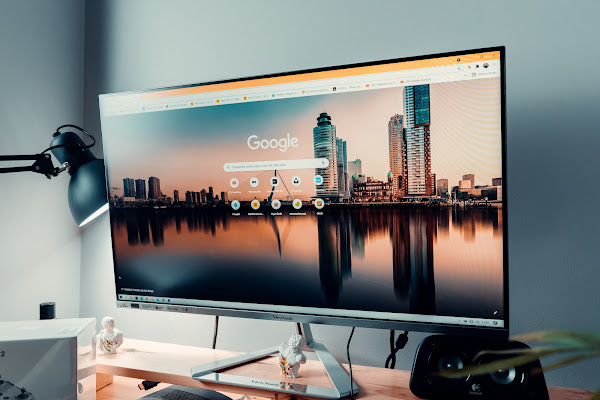
You’ve probably used Google Image Search dozens of times without knowing half of what it can do. Most people treat it as a photo-finding tool. It’s actually a visual intelligence engine — and since Google fully merged reverse image search into Google Lens in February 2025, it’s significantly more powerful than most users realise.
This guide covers everything: how to use Google Image Search and Lens on desktop and mobile, what the difference between the two actually is, and — for Indian founders and ecommerce operators — how to use visual search as a competitive intelligence and product research tool.
What Is Google Image Search — And What Changed in 2025?
Google Image Search is the photo and visual content search engine at images.google.com. Type a keyword and it returns relevant images from across the web. Upload a photo and it finds visually similar images, identifies the source, and now — through Lens — tells you what’s in the image.
The big change: as of February 2025, Google redirected all reverse image search queries through Google Lens. The old “Search by Image” endpoint is gone. Both tools now return the same results. If you’re still thinking of them as separate tools, they aren’t anymore.
Google Lens goes significantly beyond traditional image search. It doesn’t just find similar images — it understands what’s inside them. It can identify products, extract and translate text, scan barcodes, solve equations, identify plants and animals, and return real-time shopping results with price comparisons. It’s now powered by Google’s Gemini AI models, which means results are generative summaries — not just database lookups.
How to Use Google Image Search on Desktop
Three ways to search by image on a computer:
Method 1: Search by Keyword
- Go to images.google.com
- Type your search term in the search bar
- Press Enter — Google returns images ranked by relevance
- Use the filter bar below the search box to refine by size, colour, type, or usage rights
Pro tip: The Tools → Usage Rights filter is essential when looking for images you can legally use in your content or marketing materials. Filter for “Creative Commons licences” to find images free to reuse.
Method 2: Reverse Image Search (Upload a Photo)
- Go to images.google.com
- Click the camera icon in the search bar
- Select Upload a file and choose an image from your computer — or paste an image URL directly
- Google Lens analyses the image and returns visually similar results, identified objects, and shopping matches
Method 3: Drag and Drop
Open images.google.com in one browser tab. Find any image online in another tab. Simply drag the image directly into the Google Images search bar. Lens activates automatically — no clicking required.
Method 4: Right-Click in Chrome
On any image you find while browsing, right-click and select “Search image with Google” (Chrome). This runs a Lens search instantly without leaving the page.
How to Use Google Lens on Mobile
Google Lens is even more powerful on a phone because you can point it at the physical world in real time.
Method 1: Through the Google App
- Open the Google app on your Android or iPhone
- Tap the Lens icon (camera icon) in the search bar
- Point your camera at any object, text, or product
- Tap the shutter button — or let Lens scan automatically
- Results appear with tabs for: Search, Text, Translate, Shopping, and Homework
Method 2: Through Google Photos
- Open Google Photos and select any image from your gallery
- Tap the Lens icon at the bottom of the screen
- Lens analyses the photo and returns results — useful for identifying products from old screenshots or saved images
Method 3: Circle to Search (Android)
On Android phones running Android 12 and above: long-press the Home button while viewing any screen. A Lens overlay appears — draw a circle, tap, or highlight anything on your screen to search it instantly. No switching apps. Works on social media posts, shopping apps, or any image you’re viewing.
Method 4: Through Chrome on Mobile
- Open any webpage in Chrome on your phone
- Long-press any image on the page
- Select “Search image with Google” from the menu that appears
What Google Lens Can Do — Beyond Finding Similar Images
Most people use Lens for one thing. Here’s everything it actually does:
- Visual search: Find visually similar images, identify the source of a photo, detect counterfeit products
- Shopping: Point at any product in the real world or in a photo — Lens returns where to buy it online with price comparisons
- Text extraction (OCR): Point at any printed text — a menu, a business card, a whiteboard — and Lens extracts it as copyable text
- Translation: Point at text in any language and Lens overlays the translation in real time — without opening a separate app
- Identification: Identify plants, animals, landmarks, artworks, and products from a photo
- Barcode and QR scanning: Scan any barcode to find product information, pricing, and purchase options
- Homework mode: Point at a maths equation or science diagram — Lens returns step-by-step solutions
- AI Mode: Ask a question about an image and get a Gemini-powered generative answer combining visual recognition with Google’s knowledge graph
Google Lens Tips That Actually Save Time
Refine your selection: After a Lens scan, drag the selection box corners to isolate a specific object in a complex image. If you’re photographing a product in a cluttered background, narrowing the selection dramatically improves accuracy.
Search a logo, not the whole image: If Lens can’t identify a product, try focusing just on the logo or a distinctive hardware detail (a unique clasp, a specific texture). Lens sometimes gets overwhelmed by busy patterns and needs a focal point.
Use it on screenshots: If you see a product on Instagram, WhatsApp, or any social app and want to find where to buy it — screenshot it and run it through Google Photos Lens. No need to screenshot-search manually.
Extract text from images: Instead of retyping text from a photo, use Lens text extraction. Tap “Select text” after scanning, copy the extracted text, and paste it anywhere.
Frequently Asked Questions About Google Image Search
Q: What is the difference between Google Image Search and Google Lens?
A: Google Image Search finds images using text keywords or uploads. Google Lens understands what’s inside an image — identifying objects, extracting text, translating languages, and returning shopping results. As of February 2025, Google redirects all reverse image searches through Lens, making them effectively the same tool.
Q: How do I do a reverse image search on Google?
A: On desktop: go to images.google.com, click the camera icon, and upload a photo or paste an image URL. On mobile: open the Google app, tap the Lens icon, and point your camera or upload from your gallery.
Q: Does Google Lens work in India?
A: Yes — fully available in India on Android and iOS through the Google app, Google Photos, and Chrome. It supports Hindi text recognition and translation alongside English and dozens of other languages.
Q: Can I use Google Lens without the internet?
A: No — Google Lens requires an active internet connection to process and return results. The analysis happens on Google’s servers, not your device.
Q: How do I find where an image originally came from?
A: Upload it to Google Lens via images.google.com or the Google app. Lens returns visually similar images and, for photos with identifiable sources, the original source page. For precise provenance checking, also try TinEye (tineye.com) which specialises in exact image match tracking across its index.
Running an ecommerce or product startup in India?
Google Lens isn’t just a consumer tool — it’s one of the most underused competitive intelligence weapons available to Indian founders for free. Here’s what smart operators are doing with it right now:
- Counterfeit detection: Upload your product images to Lens and see where they appear online — identifying unauthorised sellers and counterfeit listings in minutes
- Competitor product research: Upload a competitor’s product photo to find every platform they sell on, their pricing, and supplier patterns you’d never find through text search alone
- Product sourcing: Photograph any product you want to manufacture or source — Lens returns wholesale suppliers, Alibaba listings, and price benchmarks instantly
- Visual SEO for your own products: Optimise your product images with descriptive alt text, keyword-rich filenames, and neutral backgrounds so Lens surfaces your products in competitor searches
We’ve put together a full guide on how Indian ecommerce and D2C founders can use free Google tools — including Lens — to do competitor research, product sourcing, and visual SEO without spending a rupee on paid tools.
Related Articles
Read next

How to Resize an Image in GIMP
Got an image that’s too large to upload, or too small to print properly? Whether you’re prepping visuals for a […]
Read More
How to remove background in GIMP?
We’ve all been there — you’ve got a logo, a product photo, or a portrait and you need the background […]
Read More
What is GIMP? A Complete GIMP Tutorial
Photo editing has gone from a niche professional skill to something virtually everyone needs at some point — whether you’re […]
Read More