How to Delete an Android App

Storage getting tight? Fed up with an app you no longer use? Either way, uninstalling Android apps is something every Android user does regularly — but most people only know one way to do it, and almost everyone skips a key step that leaves hidden files still eating into their storage after the app is gone.
Here are 3 different methods to delete apps on Android — pick whichever suits your situation — plus the pre-uninstall step that ensures you’re actually reclaiming all the space you should be.
Before You Uninstall: Clear the App’s Stored Data First
Most guides skip this. Don’t.
When you uninstall an app, Android removes the app itself — but it doesn’t always clean up every file the app left behind. Cache files, saved preferences, and locally stored data can linger on your device even after the app is gone. If you’re uninstalling specifically to free up storage, spend 30 seconds clearing the app’s data first. You’ll get back noticeably more space.
-
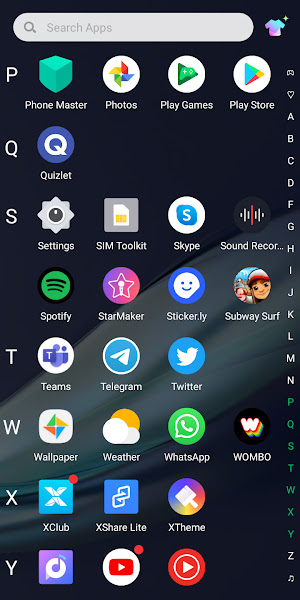
Open your phone’s App Drawer.
-
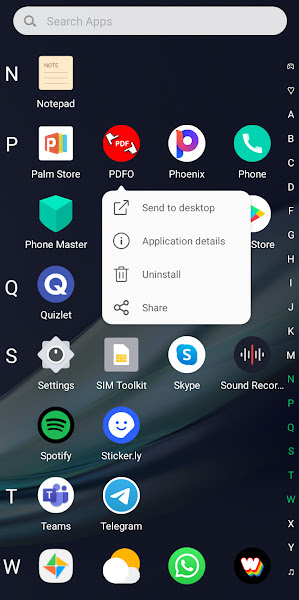
Long-press the app you want to uninstall.
-
Tap Application details from the mini-menu that appears.
-
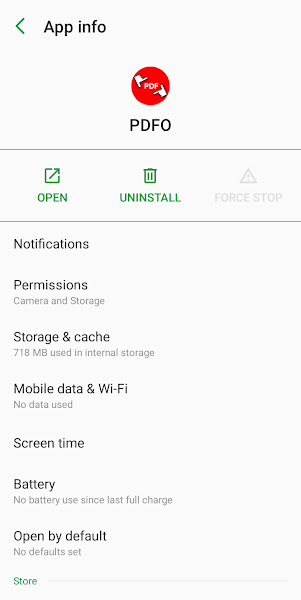
Tap Storage & Cache.
-
Tap both CLEAR STORAGE and CLEAR CACHE. Confirm if a dialog appears.
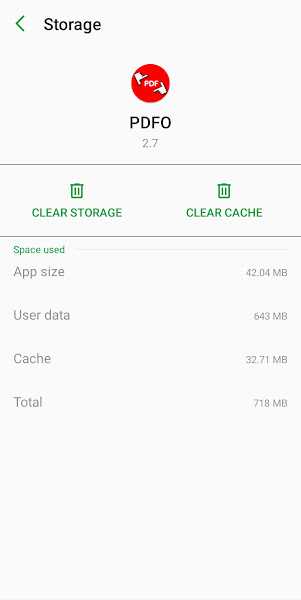
Done — now you’re ready to uninstall. Pick whichever method below works best for you.
Method 1: Delete an App via the App Drawer (Quickest)
The fastest and most intuitive method — ideal for apps you can easily locate on your home screen or in your App Drawer.
-
Open the App Drawer — swipe up from your home screen or tap the grid icon at the bottom.
-
Scroll through and find the app you want to delete.
-
Long-press the app icon until a mini-menu appears.
-
Tap Uninstall.
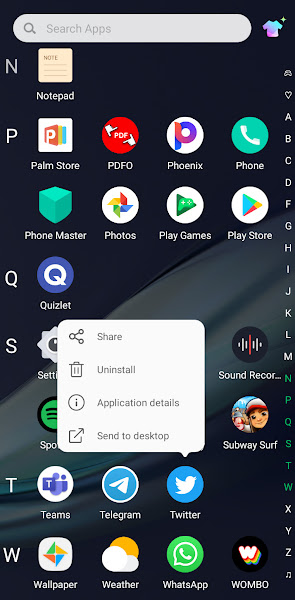
-
Tap OK on the confirmation dialog.
Note: On some Android launchers, long-pressing an app on the home screen lets you drag it to an Uninstall zone that appears at the top of the screen — drop it there to delete it.
Method 2: Delete an App via Settings (Most Reliable)
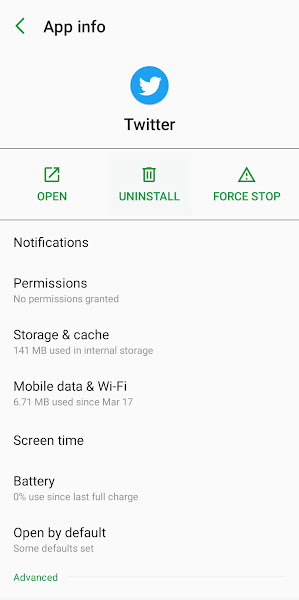
One or two extra taps, but the most reliable method across all Android versions. Especially useful for apps that are hard to find in your App Drawer, or when you want to review storage usage before deleting.
-
Open your phone’s Settings.
-
Tap Apps & Notifications (may appear as just “Apps” on some devices).
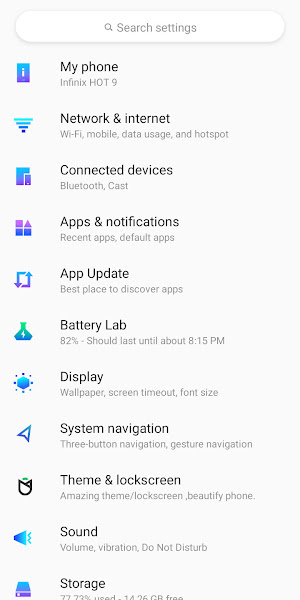
-
If you don’t see a full app list immediately, tap See All Apps.
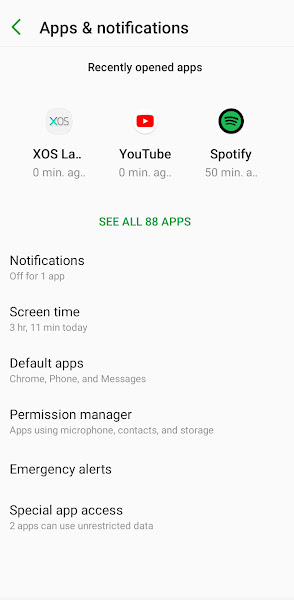
-
Find the app — scroll through the list or use the search bar.
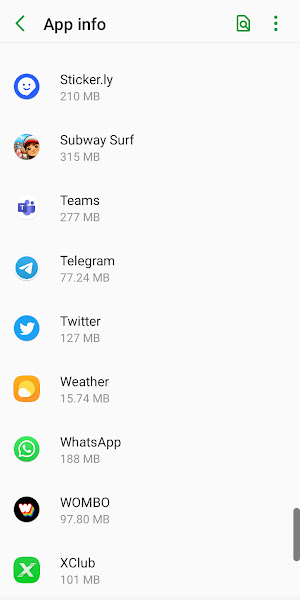
-
Tap the app and then tap the Uninstall button on its info page.
-
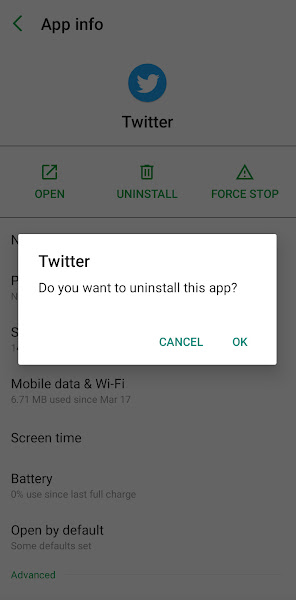
Tap OK to confirm.
Pro tip: While you’re on the Apps list, tap the sort/filter icon and sort by Storage size. This surfaces your biggest apps at the top — great for identifying what to cut when you’re hunting for space.
Method 3: Delete an App via the Play Store (Best for Bulk Cleanup)
The Play Store method is the best when you want a bird’s-eye view of your entire app library — especially for apps you downloaded long ago and may have forgotten about. It also supports batch uninstalling multiple apps at once, which the other two methods don’t.
-
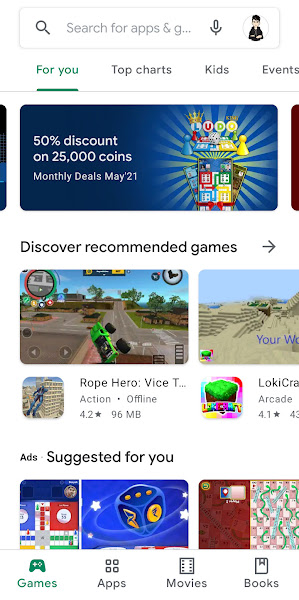
Open the Play Store on your Android phone.
-
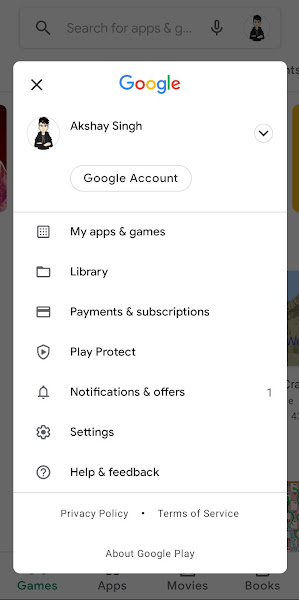
Tap your Profile icon (top-right) and select Manage apps & device.
-
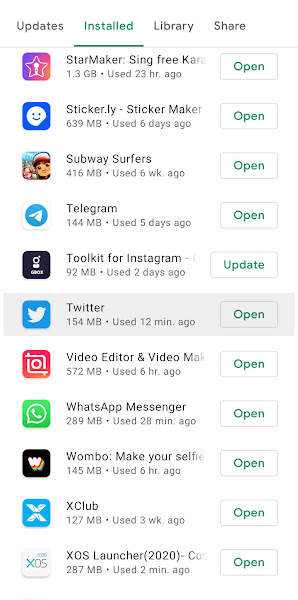
Tap the Installed tab to see all apps currently on your device.
-
Find the app you want to remove — scroll or use the search bar.
Batch tip: Tap the checkboxes next to multiple apps to select them all, then uninstall in one go — a huge time-saver during a proper storage cleanup.
-
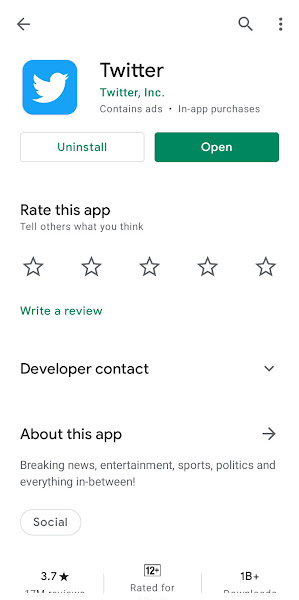
Tap the app and hit Uninstall on its Play Store page.
-
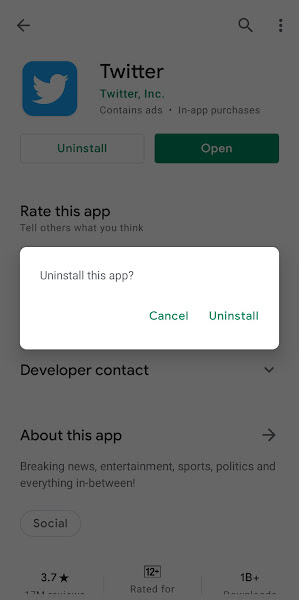
Tap Uninstall again on the confirmation dialog.
Which Method Should You Use?
Method 1 (App Drawer) — when you need to quickly delete one app you can see right in front of you. Fastest route for one-off deletions.
Method 2 (Settings) — when you want the most control. Best for apps that are hard to find, or when you want to check storage usage and permissions before uninstalling.
Method 3 (Play Store) — when you’re doing a broader cleanup and want to see your full installed app history in one place. The only method that supports batch uninstalling multiple apps at once.
Frequently Asked Questions
Q: How do I delete apps on Android?
A: Three ways: long-press the app in the App Drawer and tap Uninstall; go to Settings → Apps → find the app → Uninstall; or open Play Store → Profile → Manage apps & device → Installed tab → tap the app → Uninstall. The Play Store method also supports batch uninstalling multiple apps at once.
Q: Why should I clear app data before uninstalling?
A: Uninstalling removes the app itself but doesn’t always clean up every file it left behind. Cache files and stored data can linger after the app is gone. Clearing Storage and Cache first ensures you recover all the space, not just part of it.
Q: Can I uninstall multiple apps at once on Android?
A: Yes — via the Play Store. Open Play Store → Profile → Manage apps & device → Installed tab. Tap the checkboxes next to multiple apps and uninstall them all in one go. The most efficient method for bulk storage cleanup.
Q: Why can’t I uninstall some apps on Android?
A: Pre-installed manufacturer or carrier apps are system apps — they can’t be uninstalled, only disabled. Go to Settings → Apps → find the app → tap Disable. This stops it running and removes it from your app drawer, freeing up some space even if full removal isn’t possible.
Q: How do I find which apps are using the most storage on Android?
A: Go to Settings → Apps & Notifications → See All Apps. Tap the sort/filter icon and sort by Storage size. This surfaces your biggest apps at the top, making it easy to identify what to cut first.
Conclusion
Deleting apps on Android is straightforward once you know your options. The App Drawer method is quick, Settings gives you the most control, and the Play Store is your best bet for a thorough cleanup session.
And don’t skip that pre-uninstall step — clearing an app’s cache and storage before removing it makes sure you’re actually reclaiming all the space, not just part of it.
Run into any issues? Drop a comment below and I’ll help you sort it out.
Building a startup in India with a small team?
A quarterly app audit across your team’s devices is one of the highest-ROI operational habits you’re probably not doing. Bloated devices slow down the people running your business — and in early-stage startups where every hour of output matters, that’s a real cost.
We’ve put together a practical guide on building a lean device and productivity stack for Indian startup teams: the tools, habits, and 20-minute onboarding process that keeps small teams running fast without expensive device management software.
Related Articles
Read next

What is Textra? A Complete Guide to Textra App
Your default SMS app works. But “works” is a low bar. Textra SMS is what happens when a developer spends […]
Read More
How to solve the ‘Storage running Out of Space’ problem for Android
That dreaded “Storage Running Out of Space” notification — it always arrives at the worst possible moment. Mid-photo, mid-download, or […]
Read More
How to delete your Facebook and WhatsApp account permanently (Using your phone or PC)
If you’ve decided to leave WhatsApp or Facebook, there’s one thing worth knowing before you act: deleting the app is […]
Read More