Learn how to use Google Meet like a pro in less than 10 mins
Google Meet has become one of the most widely used video conferencing tools in the world — and for good reason. It runs entirely in the browser with no software install, integrates seamlessly with Google Calendar and Gmail, and offers a genuinely generous free plan compared to its competitors.
But most users only scratch the surface of what Meet can do. In this guide, we’ll cover everything: what Google Meet is, its key features and limitations, how to host your first meeting on both PC and mobile, how to fix the most common problems people run into, and how it stacks up against Zoom in 2025.
What is Google Meet?
Source: Google Meet
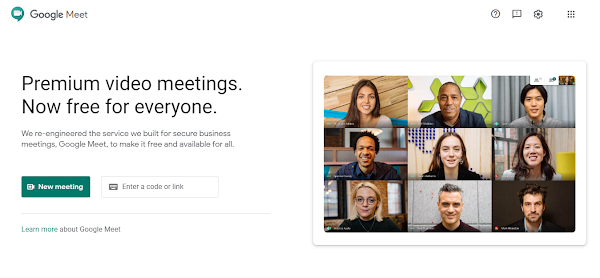
Google Meet is a free video conferencing service by Google, available on web, Android, and iOS. It’s part of Google Workspace and integrates directly with Gmail, Google Calendar, Google Docs, Sheets, and Slides — meaning you can start or join a meeting without ever leaving your existing workflow.
Unlike Zoom, which requires a desktop app for the full feature set, Google Meet works completely in your browser with full functionality. You click a link and you’re in — no downloads, no account required for participants.
As of 2025, Meet has also integrated Gemini AI across its higher-tier plans, adding features like AI-generated meeting summaries, live transcription, noise cancellation, and translated captions in 65+ languages.
Google Meet Free Plan — What Are the Limits?
This is the question most people search for — and the answer has changed since earlier versions of the app. Here’s what the free Google Meet plan includes as of 2025:
- Participants: Up to 100 per meeting
- Time limit: 60 minutes for group meetings (3+ people). No time limit for 1:1 calls.
- Screen sharing: Yes, included
- Live captions: Yes, AI-generated
- Virtual backgrounds: Yes, limited selection
- Recording: Not available on the free plan
- Breakout rooms / polls / Q&A: Not available on the free plan
If you need longer meetings, recordings, or larger participant counts, Google Workspace paid plans start at $7/user/month (Business Starter) and go up to $14/user/month (Business Standard, which adds recording, breakout rooms, and Gemini AI) and $22/user/month (Business Plus, which supports up to 500 participants).
Pros and Cons of Google Meet
Pros
No Software Install Required
Google Meet works entirely in your browser — Chrome, Safari, Firefox, and Edge all supported. Participants don’t need a Google account to join, and there’s nothing to download. For one-off meetings with external participants, this is a significant practical advantage over Zoom.
Up to 100 Participants Free
The free plan supports up to 100 participants, which covers the vast majority of use cases — team meetings, online classes, interviews, family calls. Compare this to Zoom’s free plan, which also caps at 100 but with only a 40-minute group meeting limit (versus Meet’s 60 minutes).
Deep Google Workspace Integration
If your team already uses Gmail, Google Calendar, Docs, Sheets, or Slides, Meet slots in without friction. Calendar events auto-generate Meet links. You can start a meeting directly from a Google Doc. The integration is genuinely seamless rather than bolted on.
Strong Security by Default
All audio and video in Google Meet is encrypted in transit. Participants can only enter a meeting if the host admits them, and hosts can mute or remove anyone at any time. End-to-end encryption is available for 1:1 calls and on paid enterprise tiers.
In-Meeting Chat
Meet’s built-in chat lets participants share links, notes, and messages during a call without interrupting the speaker — particularly useful in larger meetings and online classes.
Cons
60-Minute Group Meeting Limit on Free Plan
The 60-minute cap on free group meetings is the most common frustration users hit. For casual use it’s usually fine, but for longer team sessions or extended classes, it forces an upgrade or an awkward mid-meeting restart.
No Recording on Free or Starter Plans
Recording is locked behind the Business Standard plan ($14/user/month) and above. If you need to record meetings regularly, you’ll either need to upgrade or use a third-party screen recorder.
Higher Data Consumption
Google Meet’s HD video quality comes at the cost of higher data usage compared to some competitors. On a metered connection or slow internet, this can cause quality issues — though there’s a fix for this (covered in the FAQ section below).
Mobile App Lags Behind Web Version
The browser version of Meet is consistently more stable and feature-complete than the mobile app. If you have a choice, browser-based is always preferable for important meetings.
Google Meet vs Zoom (2025)
Google Meet and Zoom are the two dominant video conferencing platforms. Here’s how they compare on the metrics that actually matter in 2025:
Free plan time limit: Meet gives you 60 minutes for group calls; Zoom gives you 40 minutes. Meet wins here.
Browser access: Meet works fully in-browser with no limitations. Zoom’s browser client has restrictions — the full feature set requires the desktop app. Meet wins significantly here.
Participant capacity: Both free plans cap at 100. On paid plans, Zoom scales higher at lower price points for large webinars. Zoom has an edge for enterprise-scale events.
Pricing: Meet is included in Google Workspace — if your team already pays for Workspace, Meet adds zero additional cost. Zoom is priced separately, starting at around $13–17/user/month for the Pro plan. For teams already in the Google ecosystem, Meet is significantly cheaper.
AI features: Both platforms have integrated AI at similar price points (~$14/user/month). Meet offers Gemini AI with translated captions in 65+ languages; Zoom launched real-time speech-to-speech translation in late 2025. Roughly comparable.
Ease of use: Meet is simpler and more approachable for first-time users. Zoom has more configuration options but a steeper learning curve.
Verdict: Choose Meet if your team lives in Google Workspace. Choose Zoom if you need large-scale webinars, Zoom-specific integrations, or a Zoom-first organisation. For individual and small team use, Meet’s free plan is the stronger offer.
How to Host Your First Google Meet — Step by Step
On PC (Browser)
- Open any browser and go to meet.google.com.
- Click New meeting.
- Choose from three options:
- Get a meeting link to share: Generates a link you can send to participants in advance — useful for scheduling classes or recurring meetings. Save the link yourself too.
- Start an instant meeting: Starts a meeting immediately. Use this for spontaneous calls.
- Schedule in Google Calendar: Creates a calendar event with a Meet link auto-attached — the best option for formal or recurring meetings.
- Select Start an instant meeting → click Join now.
- A dialog box will appear with your meeting link. Share this with anyone you want to invite.
- Participants click the link, request to join, and you admit them from the waiting room.
On Mobile (Android or iOS)
- Open the Google Meet app on your phone.
- Tap New meeting.
- Select your preferred option — Get a link to share, Start an instant meeting, or Schedule in Google Calendar.
- Tap Start an instant meeting — the meeting opens and you’ll see a link to share at the centre of the screen.
- Share the link with your participants and admit them when they request to join.
Pro tip: You can also start a Meet directly from Google Calendar — create an event and click Add Google Meet video conferencing. The link is automatically included in calendar invites sent to attendees, which significantly reduces the friction of joining for participants.
Common Google Meet Problems — And How to Fix Them
How do I fix Google Meet on a slow internet connection?
Source: Google Meet
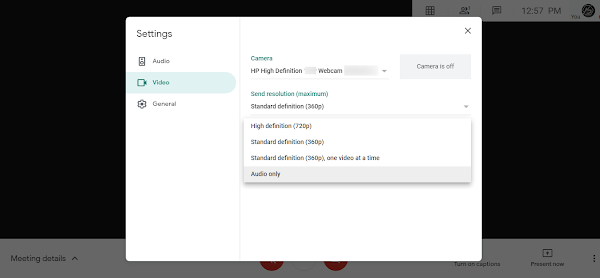
If you’re on a slow or metered connection, reduce Meet’s video quality to cut data consumption significantly:
- In a meeting, click the three-dot menu → Settings.
- Go to the Video tab.
- Under Send resolution and Receive resolution, drop both to 360p.
- For the lowest data usage, switch to Audio only — this removes all video streams and lets you participate on even very poor connections.
My camera or microphone isn’t working in Meet — what do I do?
Source: Google Meet
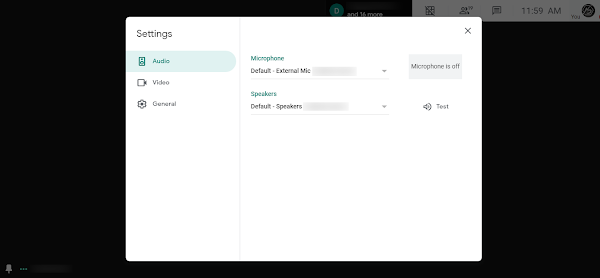
If your camera or mic works everywhere else but not in Meet, it’s almost always a device selection issue — Meet hasn’t set the right device as default. Here’s how to fix it:
- In a meeting, click the three-dot menu → Settings.
- Go to the Audio tab and confirm the correct microphone is selected under Microphone.
- Go to the Video tab and confirm the correct camera is selected.
- If the issue persists, check your browser’s site permissions — click the lock icon in the address bar and ensure camera and microphone access is allowed for meet.google.com.
Where is the chat feature in the Google Meet mobile app?
In the current version of the app, tap the three-dot menu in the lower-right corner during a meeting and select In-call messages. It’s a couple of taps deeper than it used to be in earlier app versions.
How do I see all participants on screen at once in Google Meet?
Google Meet now has this built in natively — no extension required. During a meeting, click the Change layout button (grid icon at the bottom) and select Tiled. You can then adjust how many participants are shown simultaneously using the slider that appears.
Can I use Google Meet on an older Android phone?
The Google Meet app requires Android 6.0 (Marshmallow) or above. If your phone runs an older Android version, you can still join meetings through a browser: open Chrome, tap the menu (three dots) → Desktop site, then paste the meeting link into the address bar. The web version will load and allow you to join.
Frequently Asked Questions About Google Meet
Q: How long can a Google Meet last for free?
A: Free group meetings (3+ participants) have a 60-minute time limit. One-on-one calls have no time limit on the free plan. To remove the group meeting time limit, you need at least a Google Workspace Business Starter plan ($7/user/month).
Q: How many people can join a Google Meet for free?
A: Up to 100 participants on the free plan. Paid plans scale this to 150 (Standard), 500 (Plus), and 1,000 (Enterprise).
Q: Does Google Meet record meetings?
A: Not on the free plan or Business Starter. Recording is available from Business Standard ($14/user/month) and above. Recordings save automatically to Google Drive. If you need to record on a free account, you’ll need a third-party screen recording tool.
Q: Is Google Meet safe and secure?
A: Yes. All Meet calls use encryption in transit by default. End-to-end encryption is available for 1:1 calls and on enterprise tiers. Participants cannot join without being admitted by the host, and hosts can remove or mute anyone at any time.
Q: Can someone join Google Meet without a Google account?
A: Yes — participants can join via a meeting link without a Google account. However, they may need the host to admit them from the waiting room, depending on the meeting’s security settings.
Q: Is Google Meet better than Zoom?
A: It depends on your use case. Google Meet is better for teams already using Google Workspace, browser-first workflows, and ease of access. Zoom is better for large webinars, advanced breakout room controls, and organisations with Zoom-native workflows. For free plan users, Meet’s 60-minute limit beats Zoom’s 40-minute limit.
Q: Does Google Meet work without the app?
A: Yes — on desktop, Meet works fully in any modern browser without installing anything. On mobile, the app is recommended for the best experience, but the browser version also works.
Conclusion
Google Meet is one of the most practical free video conferencing tools available in 2025 — particularly if you’re already in the Google ecosystem. The 60-minute free group meeting limit is worth being aware of, but for the majority of everyday use cases it’s more than enough. And for teams already paying for Google Workspace, it adds zero extra cost.
The key things to remember: always use the browser version on desktop for the best experience, drop your video quality to 360p on slow connections, and check your device settings first if your camera or mic misbehaves.
Have a specific Google Meet problem that isn’t covered here? Drop it in the comments — happy to help troubleshoot.
Related Articles
Read next
Google's 3 Extensively Useful Services that you little know About
When people think of Google, they think of Search. Maybe Gmail. Maybe Maps. But Google quietly runs one of the […]
Read More
Which is the Best Free Video Editing App
Whether you’re editing Reels for Instagram, crafting YouTube Shorts, or putting together a quick WhatsApp status video, the app you […]
Read More
How to Protect your Privacy on Android
You’ve handed your phone more personal information than almost anyone in your life. Your location, your contacts, your photos, your […]
Read More