Photo editing has gone from a niche professional skill to something virtually everyone needs at some point — whether you’re putting together a YouTube thumbnail, cleaning up a product photo, or building a portfolio. And the tool most beginners reach for first is Adobe Photoshop.
The problem? Photoshop isn’t cheap. It runs on a monthly subscription, and for someone just starting out or working on personal projects, that cost is hard to justify.
Enter GIMP — the GNU Image Manipulation Program. It’s free, open-source, cross-platform, and genuinely powerful. Most of the concepts you learn in GIMP (layers, selection tools, blend modes, filters) transfer directly to Photoshop and every other professional editing tool. So you’re not just learning GIMP — you’re building a foundation for professional photo editing that works anywhere.
In this tutorial, I’ll walk you through what GIMP is, how to get it installed, and how to create your first design from scratch — background, logo, text, drop-shadow effect, border, and final export included.
What is GIMP?
GIMP stands for GNU Image Manipulation Program. It’s a free, open-source photo editing application available for Windows, macOS, and Linux. Despite being free, it offers a professional-grade feature set — layer-based editing, advanced selection tools, filters, colour correction, script automation, and much more.
One of GIMP’s biggest advantages for learners is that its terminology and workflow closely mirror other editing tools. Once you understand how layers work in GIMP, they work the same way in Photoshop, Affinity Photo, and every other tool. You’re not locked into a proprietary system — you’re learning universal skills.
Understanding the GIMP Interface
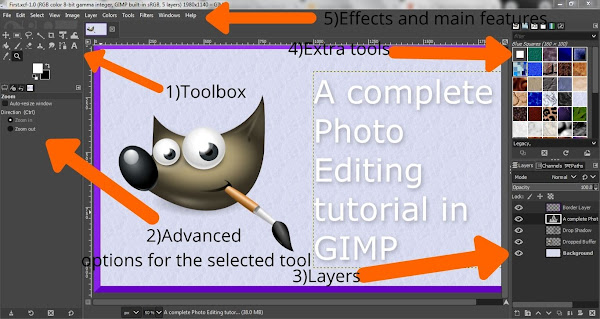
Before diving into the tutorial, it helps to know what you’re looking at. Here’s a quick breakdown of the main GIMP interface panels:
- Toolbox: The primary toolkit — selection tools, paint tools, transform tools, text tool, and more. Everything you actively use to manipulate an image lives here.
- Tool Options: Directly below (or beside) the Toolbox, this panel shows the advanced settings for whichever tool you currently have selected. Select the Text tool and you’ll see font, size, and colour options here.
- Layers Panel: Every element you add to a design creates its own layer. Layers let you edit each component independently without affecting the others — this is fundamental to non-destructive editing.
- Brushes / Patterns / Extra Tools: The panel on the right side of the screen gives you access to GIMP’s built-in brush presets, fill patterns, and other resources.
- Taskbar / Menu Bar: The top menu bar (File, Edit, Select, View, Image, Colors, Tools, Filters, Windows, Help) is where most of GIMP’s deeper features and effects are accessed.
Step 1: Download GIMP
Head over to the official GIMP download page at gimp.org/downloads. The page automatically detects your operating system and recommends the right version for your system.
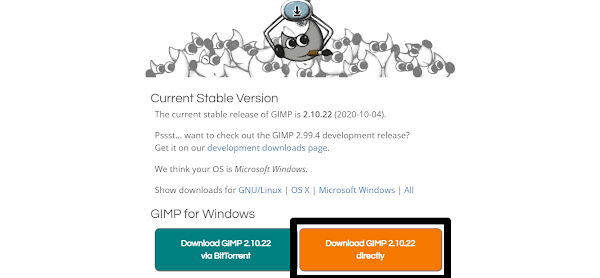
Click Download GIMP directly and wait for the installer to finish downloading. Don’t download from any third-party site — always use the official source.
Step 2: Install GIMP
Once the download completes, navigate to your Downloads folder and locate the installer file — it’ll be named something like gimp-2.10.22-setup.exe on Windows.
Double-click it to launch the installer. It’ll ask for permission to make changes to your system — allow it. The installation process is straightforward and runs automatically. Click Finish when it’s done.
To launch GIMP after installation, hit the Windows key and type GIMP — it’ll appear in your Start menu. On macOS, find it in your Applications folder.
Step 3: Create Your First Design in GIMP
Now for the fun part. We’re going to recreate this design from scratch:
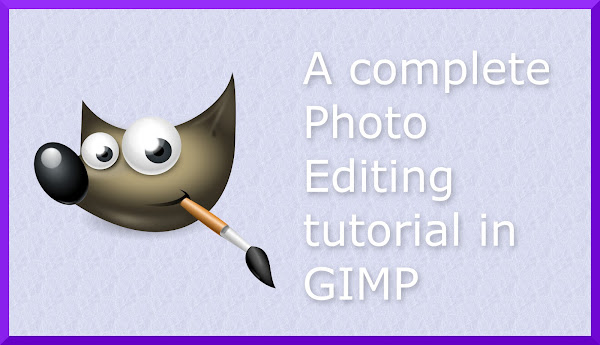
It includes a patterned background, a GIMP logo, styled text with a drop-shadow effect, and a decorative border. Follow the steps below.
1. Launch GIMP
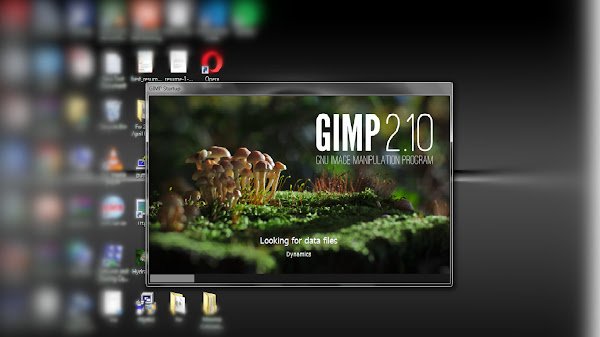
Open GIMP from your Start menu or Applications folder. Give it a moment to load — it initialises a fair number of resources on startup, so the first launch can take 15–30 seconds.
2. Create a New Canvas and Set a Background
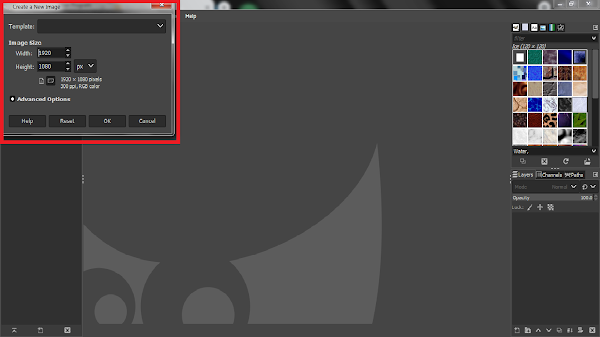
Go to File → New. A dialog box will open asking for your canvas dimensions. The default is 1920 × 1080px — perfect for most use cases. Adjust it if you need a different size, then click OK.
You’ll now have a blank black canvas. We want to replace this with a pattern background. Look for the Patterns tab in the top-right panel of the GIMP interface.
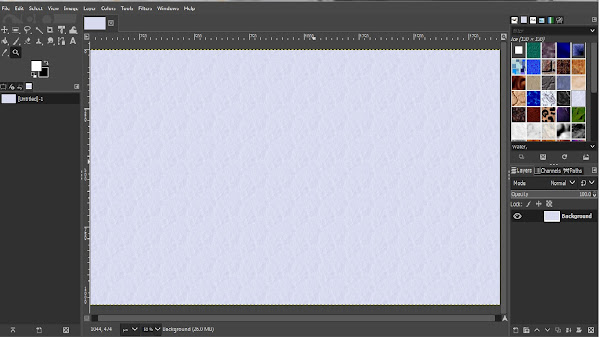
Browse the patterns available, pick one you like, and drag it directly onto the main canvas. It’ll fill the background instantly.
3. Add the GIMP Logo
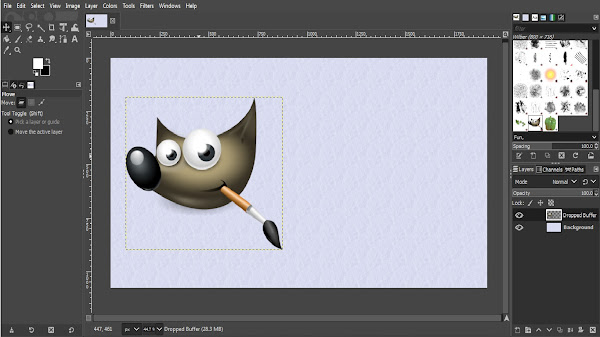
Switch to the Brushes tab in the top-right panel and scroll down until you find the GIMP logo brush. Drag it onto the canvas and position it towards the left side of the image — roughly as shown in the reference design above.
Tip: If the logo appears too large or too small, you can scale it after placing it using Tools → Transform Tools → Scale.
4. Add Text
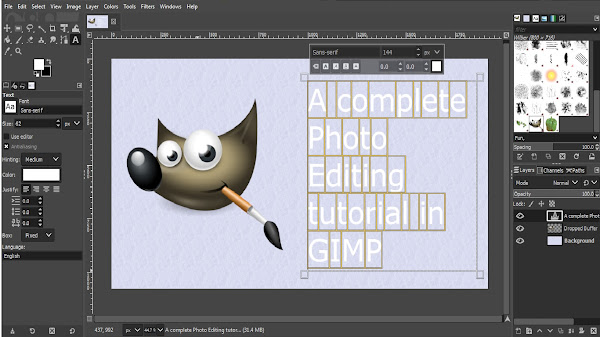
Select the Text Tool from the Toolbox (the A icon). Click and drag to draw a text box on the right side of the canvas, then type or paste your text — in our example: A complete Photo Editing tutorial in GIMP.
With the text selected, set the font size to approximately 144px using the floating control bar that appears above the text box. You can also change the font and colour from the Tool Options panel.
5. Add a Drop-Shadow Effect to the Text
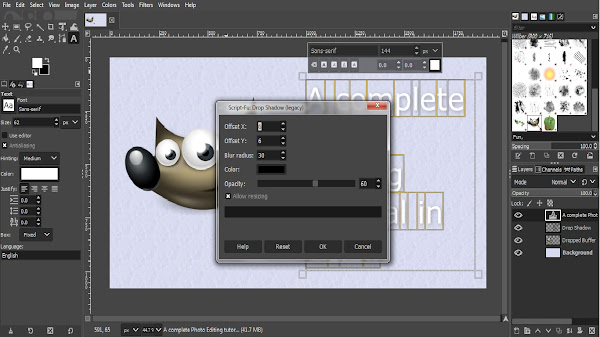
Our text is white against a light background — without some treatment, it’ll be hard to read. A drop-shadow solves this cleanly.
With your text layer selected, go to Filters → Light and Shadow → Drop Shadow (Legacy). A settings window will appear. Set the following values:
- Offset X: 6
- Offset Y: 6
- Blur Radius: 30
Click OK and the shadow will be applied. The text should now stand out clearly against the background.
6. Add a Decorative Border
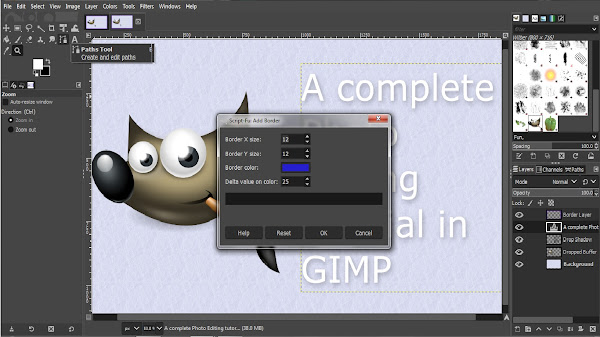
Go to Filters → Decor → Add Border. In the border settings window, use these values:
- Border X Size: 12
- Border Y Size: 12
- Border Color: Dark blue (or any colour that complements your design)
- Delta Value on Color: 25
Click OK and the border will frame your image neatly.
7. Export and Save Your Image
One thing that trips up every GIMP beginner: File → Save saves in GIMP’s native .xcf format, which preserves all your layers and editing history but can’t be used as a standard image file. To export as a usable image, you need File → Export As.
In the Export As dialog, click Select File Type (By Extension), choose .jpg (or .png if you need transparency), and click Export. Confirm on the next dialog and your image is saved.
That’s it — you’ve created your first GIMP design from scratch. 🎉
Conclusion
GIMP has a learning curve, but it rewards the effort. Once you’re comfortable with the basics — creating canvases, working with layers, applying filters, and exporting correctly — you have a genuinely professional tool at your disposal that costs nothing.
The concepts you’ve touched in this tutorial (layers, drop-shadows, filters, export formats) are the same ones that underpin every professional editing workflow. You’re not just learning a free tool — you’re building transferable skills.
Got stuck at any step, or want to try a specific effect next? Drop a comment below — happy to walk you through it.