
That dreaded “Storage Running Out of Space” notification — we’ve all seen it at the worst possible moment. Mid-photo, mid-download, or right when you’re trying to install an update. Annoying doesn’t quite cover it.
The good news? You don’t need to delete everything you care about, and you definitely don’t need a new phone. In this post, I’ve broken down 7 tested methods to free up storage on your Android device — from quick wins you can do in under a minute, to slightly deeper fixes that make a lasting difference.
Let’s get into it.
Why Is Your Android Storage Running Out?
Before jumping into fixes, it helps to understand what’s actually filling up your phone. Your Android device has two types of memory working in parallel:
RAM (Random Access Memory) handles active processing — it’s the memory your phone uses to run apps simultaneously. More RAM means smoother multitasking. When RAM gets overloaded, your phone starts to lag and stutter.
ROM (Internal Storage) is where everything lives permanently — your apps, photos, videos, downloads, and cached data. This is the one that throws up the “Insufficient Space” error when it gets too full.
Most Android phones start struggling once their internal storage crosses around 80% capacity. The system needs breathing room to create temporary files, run updates, and keep things moving — when that room runs out, you feel it everywhere.
7 Methods to Free Up Storage on Android
1. Clear App Cache
This is usually the single biggest quick win — and most people never bother with it. Every app on your phone quietly accumulates cache data in the background, and some apps are far greedier about it than others.
What is cache, exactly?
When you open an app, it fetches images, resources, and data from its servers. To avoid making that same request every single time, it saves a local copy on your device — that’s cache. Smart in theory, but apps don’t always clean up after themselves. Over time, outdated and redundant cache files pile up and eat into your storage without you realising it.
How to clear cache on Android
You can clear cache per-app in about 30 seconds. Here’s how:
- Long-press the app icon in your App Drawer or Home screen.
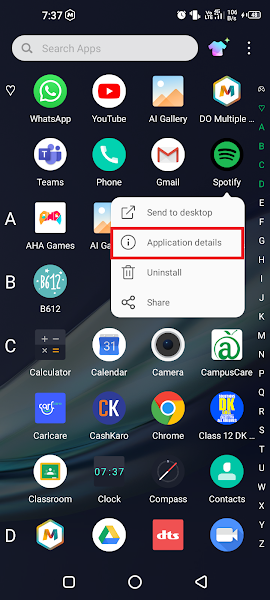
- Tap Application details from the mini-menu that appears.
- Tap Storage & Cache.
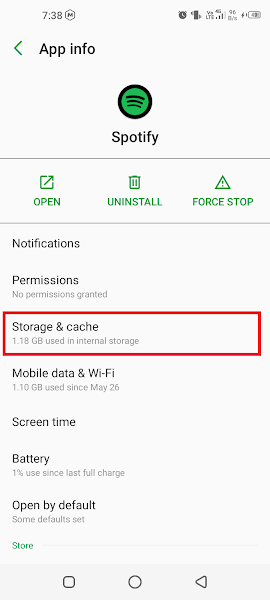
- Tap CLEAR CACHE.
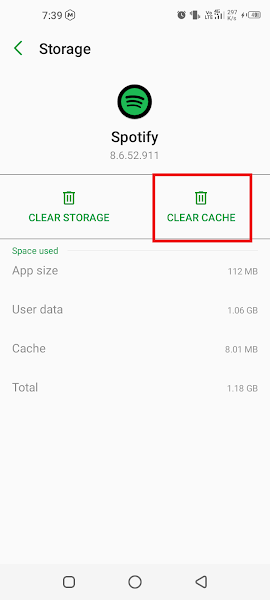
Pro tip: Start with the usual heavy hitters — Chrome, YouTube, Instagram, Spotify, and Google Maps tend to accumulate the most cache. Check those first before working through the rest of your app list.
2. Clean Junk Files
Junk files are the digital equivalent of dust under your couch — residual files, temporary installation data, and leftover fragments from apps that have since been deleted. They serve no purpose but they absolutely take up space.
Which cleaner app should you use?
Stick to the built-in cleaner that came with your phone. Seriously — avoid third-party “junk cleaner” apps from the Play Store. Many of them don’t actually clean much, and a significant number have been flagged as adware or outright malicious. Your phone manufacturer’s cleaner (called “Phone Manager”, “Device Care”, “Cleaner”, or similar depending on your brand) is the safer, more effective choice.
- Find and open the built-in Junk File Cleaner or Phone Manager app on your device.
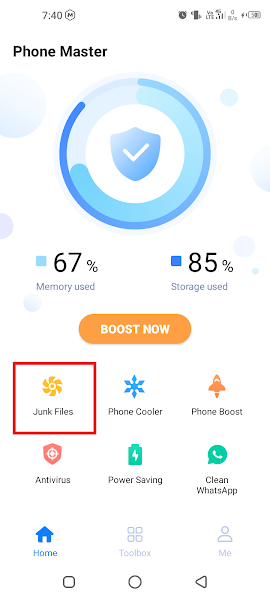
- The scan will run and present a list of junk files along with how much space each category is consuming.
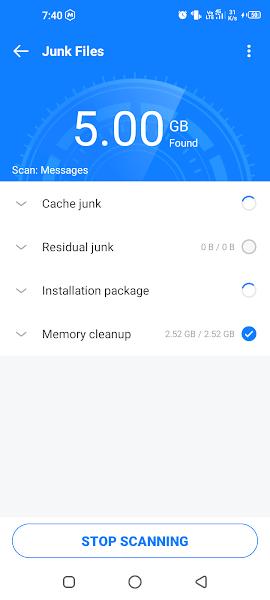
- Before tapping Clean, scan the list quickly. If anything looks important, uncheck it. Better safe than sorry.
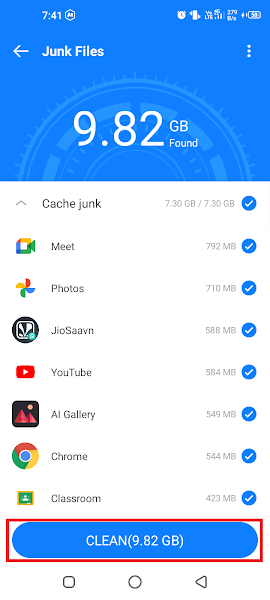
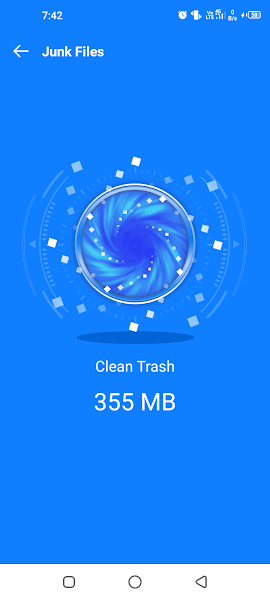
- Tap Clean — done. Space reclaimed instantly.
3. Turn Off WhatsApp Auto-Download
If you’re in even two or three active WhatsApp groups, your phone is silently hoarding gigabytes of “Good Morning” images, forwarded videos, and voice notes you’ll never listen to. Auto-download is on by default — and it’s one of the sneakiest storage drains on most Android phones.
Turning it off takes about two minutes and makes a surprisingly big difference:
- Open WhatsApp.
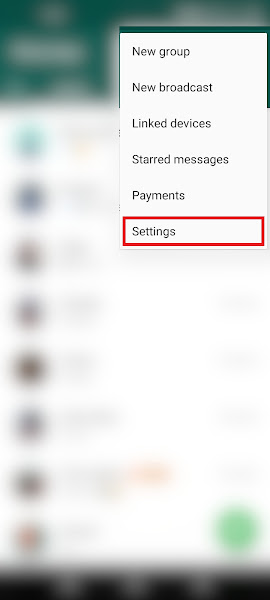
- Tap the three-dot menu (top-right) and select Settings.
- Tap Storage and Data.
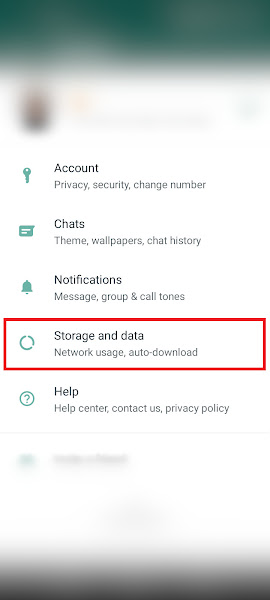
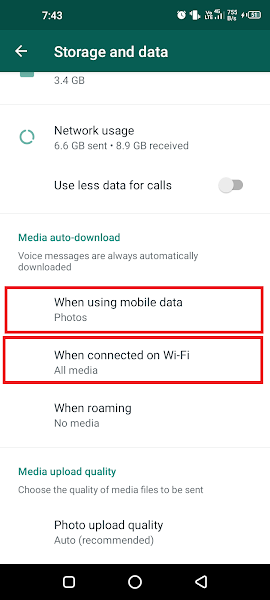
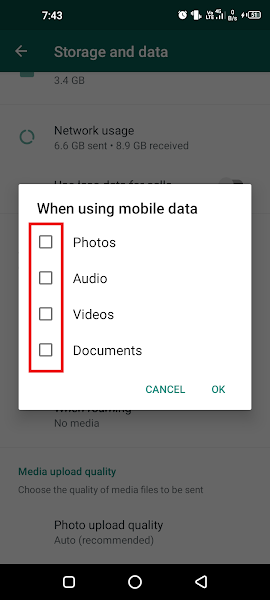
- Under Media Auto-Download, tap When using mobile data and uncheck all boxes.
- Go back and tap When connected on Wi-Fi — uncheck all boxes there too.
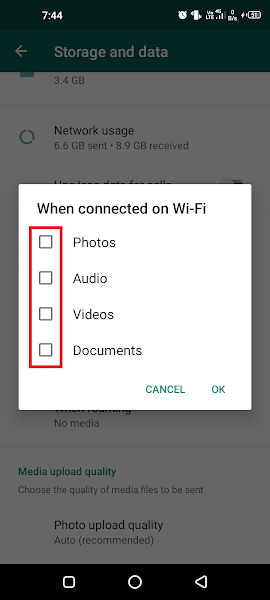
From now on, media only downloads when you choose to download it — tap to save what’s actually worth keeping, ignore the rest.
4. Disable Useless System Apps
Every Android phone ships with a set of pre-installed apps — some essential, some that you’ll genuinely never open. These system apps can’t always be uninstalled, but they can be disabled, which stops them from running, clears their storage footprint, and removes them from your app drawer.
Good candidates for disabling: manufacturer’s duplicate apps (a second browser, a second email client, a built-in music player you don’t use), carrier-installed bloatware, and any Google app that duplicates functionality you already have covered by another tool.
⚠️ Important: Don’t disable anything you’re not sure about. Disabling core system components (like Settings, Phone, or Contacts) can break your device. If in doubt, leave it enabled.
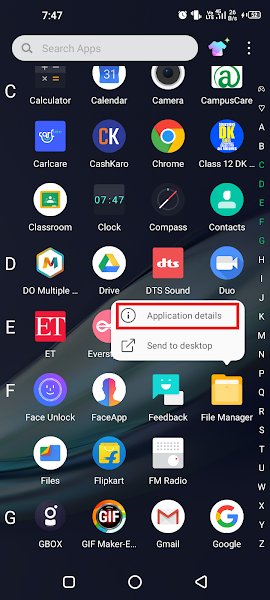
- Long-press the system app icon on your Home screen or App Drawer.
- Tap Application details.
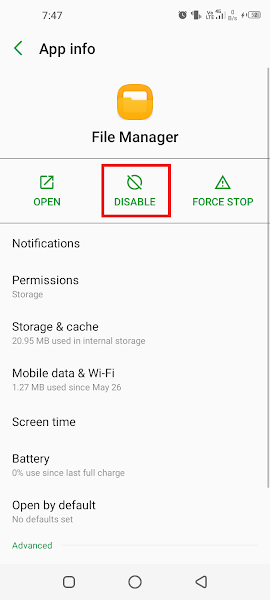
- Tap the DISABLE button.
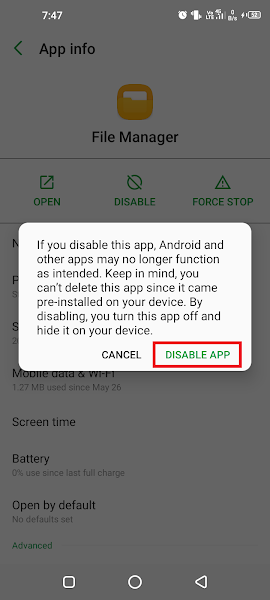
- Confirm by tapping Disable again in the confirmation dialog.
After disabling, go back into the app’s Storage settings and clear its cache and data too — that squeezes out every last bit of reclaimed space.
5. Uninstall Unused Apps
Be honest — how many apps on your phone haven’t you opened in the last three months? We’ve all installed something for a one-time task and completely forgotten about it. Games, travel apps, event apps, tools for that project that wrapped up six months ago.
Do a quick audit of your App Drawer and uninstall anything you no longer actively use. You’ll often recover 500–600 MB or more without touching anything you’d miss.
Tip: Go to Settings → Apps and sort by storage size — that’ll surface the biggest space hogs at the top so you can prioritise what to cut first.
6. Delete Duplicate and Unnecessary Files
Your gallery is probably full of near-identical photos from that one burst you took trying to get the perfect shot — plus screenshots you no longer need, downloaded PDFs from six months ago, and duplicate files that accumulated during backups or transfers.
Open your phone’s File Manager and spend five minutes going through your Downloads folder, Documents folder, and WhatsApp Media folder. You’ll be surprised what’s been quietly sitting there. Some phones also have a built-in “Suggestions” feature under Storage settings that automatically flags large or duplicate files for review.
7. Stop Apps Running in the Background
This one won’t free up internal storage directly, but if your phone feels sluggish even after clearing space, background apps are usually the culprit.
When you “close” an app by pressing the back button or switching away, it doesn’t always actually stop — it keeps running silently in the background, consuming RAM and draining your battery. That’s why your phone sometimes feels hot for no obvious reason, or your battery drops faster than expected.
To address this: go to your recent apps view and swipe away anything you’re not actively using. For a more permanent fix, go to Settings → Apps → [App Name] → Battery and restrict background activity for apps that don’t need it.
8. Use an SD Card for Extra Storage
If your phone has a microSD card slot, this is the most cost-effective way to dramatically expand your available storage — a 64GB or 128GB card costs very little and gives you a dedicated home for photos, videos, music, and documents.
The smartest approach: move your existing media files (photos, videos, downloaded content) onto the SD card, and use the freed-up internal storage for apps — since most Android apps can only be installed to internal storage anyway.
If you want to use the SD card for app installations too, you can configure it as internal storage via Settings → Storage → Format as Internal — but note this permanently formats the card and ties it to your specific device.
Frequently Asked Questions
Q: How do I identify which apps I don’t need anymore?
A: The easiest way is to go to Settings → Apps and sort by “Last used.” Anything you haven’t opened in 30+ days is a solid uninstall candidate. Your phone’s built-in Task Manager (if it has one) can also surface rarely-used apps quickly.
Q: How do I fix “Storage Running Out of Space” on Android?
A: Work through the methods above in order — clear cache first (fastest wins), then junk files, then turn off WhatsApp auto-download. Together those three steps alone usually recover several gigabytes without deleting anything important.
Q: Can I use an SD card to download and install apps?
A: You can, but with a caveat. Go to Settings → Storage → Set SD Card as Internal Memory (exact wording varies by manufacturer). That said, the simpler and more reliable approach is to move your media files to the SD card and use the freed-up internal storage for apps — less risk of compatibility issues that way.
Q: Will freeing up storage actually make my phone faster?
A: Yes — noticeably so. Clearing 500–700 MB or more tends to produce a visible improvement in app load times and overall responsiveness. The phone’s OS needs free space to write temporary files and manage processes smoothly, so the more breathing room you give it, the better it performs.
Q: Why does my phone keep hanging or freezing?
A: In most cases, this points to storage running critically low or RAM being overloaded by background apps. Try methods 1, 2, and 7 from this guide first — clearing cache, removing junk, and closing background apps — and see if the hanging improves before looking at anything more drastic.
Q: Why do my call logs take forever to load?
A: Slow call log loading is a classic sign of near-full internal storage. It’s not just call logs — any app that needs to read or write data will feel sluggish when the phone is gasping for storage space. Freeing up space should resolve it.
Conclusion
Running out of storage on your Android doesn’t have to mean a factory reset or a trip to the phone shop. A combination of the methods above — clearing cache, removing junk, disabling unused system apps, and managing your media — can recover several gigabytes without you losing anything you actually care about.
The key is doing it regularly rather than waiting until the phone grinds to a halt. Even a 10-minute monthly cleanup keeps things running smoothly.
Stuck on any of the steps above, or tried everything and still running low? Drop a comment and let’s troubleshoot it together.