How to Resize an Image in GIMP
Got an image that’s too large to upload, or too small to print properly? Whether you’re prepping visuals for a blog post, resizing a product photo for an ecommerce listing, or hitting a specific file size limit — GIMP is one of the best free tools to get it done without compromising quality.
In this guide, I’ll walk you through exactly how to resize an image in GIMP — step by step, with screenshots at every stage. The whole process takes under five minutes, even if you’ve never opened GIMP before.
And if you want to go further, check out the full GIMP beginner tutorial or learn how to remove an image background in GIMP.
Why Use GIMP to Resize Images?
Fair question — your phone has image resizing apps, and there are plenty of free websites that do the job too. So why bother with GIMP?
Quality. GIMP is purpose-built photo editing software — the most capable free alternative to Adobe Photoshop available. When you resize through a random online tool or a basic mobile app, the algorithm is often unsophisticated. You’ll notice artefacts, blurring, or colour degradation, especially when enlarging.
GIMP uses professional-grade interpolation algorithms — Cubic and Sinc/Lanczos — to intelligently reconstruct pixel data when scaling. Your output comes out clean and sharp rather than like it’s been through a blender.
It’s also completely free, cross-platform (Windows, Mac, Linux), works offline, and handles far more than just resizing. Once you’re familiar with it, you’ll reach for it for almost every image editing task.
How to Resize an Image in GIMP — Step by Step
This method works for any image format — JPG, PNG, WEBP, BMP, TIFF, you name it.
-
Open GIMP on your PC. If you don’t have it yet, download it free from gimp.org.
-
Double-click anywhere in the main canvas area. A file picker appears — navigate to your image, select it, and click Open.
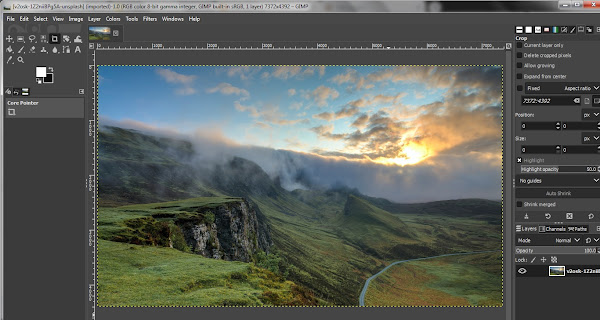
-
Once the image loads, go to the menu bar and click Image → Scale Image…
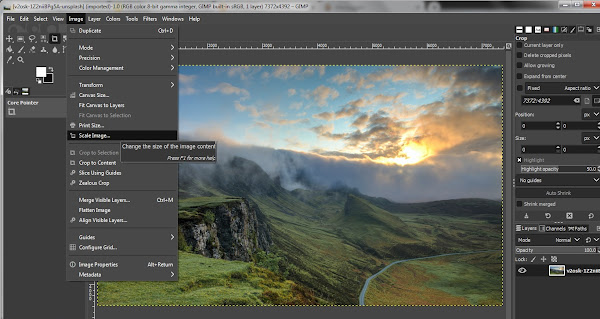
-
A dialog box appears with your image’s current dimensions. Enter your target size in pixels, inches, millimetres, or percentage — whatever unit suits your use case.
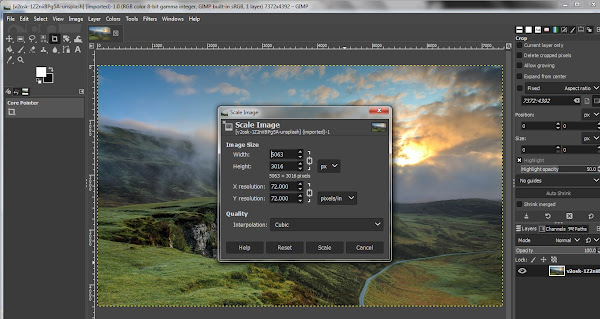
Important: By default, GIMP locks the aspect ratio. Change the width and the height adjusts automatically — preventing your image from looking stretched or squashed. You’ll see a small chain-link icon between the Width and Height fields. Click it to unlink them if you need to set dimensions independently (for example, to force a specific square size).
-
Once you’re happy with the dimensions, click the Scale button. GIMP applies the changes immediately.

-
Now to save — and this is where GIMP trips up most first-timers. Do not use File → Save. That saves in GIMP’s native
.xcfformat, which won’t open in a browser or standard image viewer. Instead, go to File → Export As…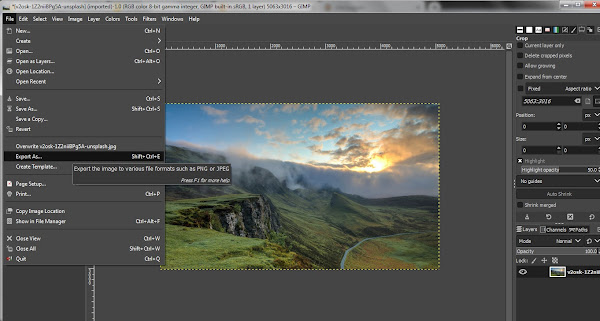
-
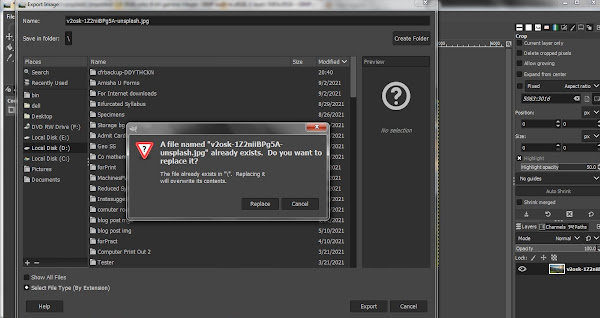
In the Export As window, rename your file if needed. To change the file type — say, saving a PNG as a JPG — click Select File Type (By Extension) at the bottom of the window and pick your format from the dropdown. Then hit Export.
-
A confirmation window asks whether to overwrite the original. Click Replace to overwrite, or rename the file first to keep the original untouched — generally the safer choice.
-
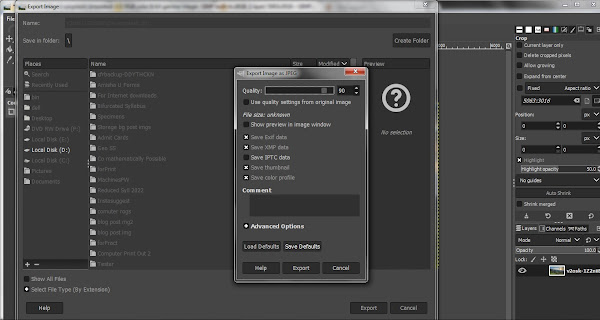
Click the final Export button on the next dialog — done. Your resized image is saved to your PC in the format you chose.
Nine steps that take longer to read than to actually do.
How to Resize Without Losing Quality — The Key Settings
Resizing well isn’t just about entering the right numbers. Two settings determine output quality:
Interpolation method: In the Scale Image dialog, there’s a dropdown labelled Interpolation. The default is Linear — good for most cases. For the sharpest results when downscaling, switch to Cubic. For the highest quality when upscaling, choose Sinc (Lanczos3). These algorithms determine how GIMP reconstructs pixel data during scaling — the difference is visible, especially on edges and fine detail.
Export quality for JPG: When exporting as JPG, GIMP shows a Quality slider (0–100). The default is 90 — a good balance between file size and visual quality. Drop below 80 and you’ll start seeing compression artefacts. For web images where file size matters, 80–85 is a reasonable sweet spot. For print or archival use, keep it at 90–95.
Frequently Asked Questions
Q: How do I resize an image in GIMP without losing quality?
A: When making an image smaller, GIMP handles downscaling cleanly — switch the interpolation to Cubic for the sharpest results. When enlarging, scaling up to 20–25% typically looks fine. Beyond that, use a free AI upscaling tool like Upscayl first, then fine-tune in GIMP.
Q: Is resizing the same as cropping in GIMP?
A: No — and it’s worth knowing the difference. Resizing via Scale Image changes the overall dimensions of the entire image. Cropping cuts away a portion of the image while the remaining area stays at its original resolution. Two completely different operations.
Q: How do I change the file format when saving a resized image in GIMP?
A: In the Export As dialog, click Select File Type (By Extension) at the bottom to expand a dropdown of supported formats — JPG, PNG, WEBP, BMP, TIFF, and more. Select your format and click Export.
Q: Can I undo a resize in GIMP?
A: Yes. Press Ctrl+Z to undo steps one at a time, or go to Edit → History to jump to a specific point. Undo history is available as long as the file is still open.
Q: Why use GIMP instead of an online image resizer?
A: GIMP uses professional-grade interpolation algorithms to intelligently reconstruct pixel data when scaling — giving you sharper, cleaner output than most online tools. It’s also completely free, works offline, handles every major image format, and is capable of far more than resizing.
Conclusion
Resizing an image in GIMP is genuinely as straightforward as it looks — open, scale, export. A couple of minutes once you know the steps, and the quality beats most online tools decisively.
If you run into any snags following the steps above, drop your question in the comments and I’ll help you sort it out.
Building a startup in India on a tight budget?
Most bootstrapped founders spend money on design tools before they need to. Canva Pro at ₹4,000/year, Adobe Creative Cloud at ₹55,000/year — these add up fast when runway is everything.
GIMP replaces both for product photography editing, marketing visual creation, and pitch deck image work — completely free. We’ve put together a full zero-budget design stack for Indian startup founders: the free tools that cover 90% of what early-stage teams actually need, without a subscription in sight.
Related Articles
Read next
How to perform Google Image Search
You’ve probably used Google Image Search dozens of times without knowing half of what it can do. Most people treat […]
Read More
How to remove background in GIMP?
We’ve all been there — you’ve got a logo, a product photo, or a portrait and you need the background […]
Read More
What is GIMP? A Complete GIMP Tutorial
Photo editing has gone from a niche professional skill to something virtually everyone needs at some point — whether you’re […]
Read More