In today’s digital communication landscape, messaging platforms like WhatsApp and Telegram dominate — but they only work if both parties are on the same app. When that’s not the case, SMS remains the universal fallback. Every Android smartphone ships with a default SMS client, and many manufacturers have now standardised on Google Messages.
However, if you want an SMS and MMS client that goes beyond the basics — with deeper customisation, scheduled messaging, and a cleaner interface — Textra is worth a serious look. This guide covers everything you need to know: what Textra is, its standout features, how to set it up, and how it stacks up against Google Messages.
Read Also: 5 Ultimate WhatsApp Tricks That Every User Ought to Know
What is Textra?
Textra is a third-party SMS and MMS client for Android. It replaces your phone’s default messaging app and supports not only standard text messages but also multimedia content — photos, GIFs, videos, and more.
What sets Textra apart is its combination of a clean, minimal interface with an extensive set of customisation options. You can tailor the look of the app globally or on a per-contact basis, making it one of the most flexible SMS clients available on the Android platform.
Important: Textra is an Android-exclusive app. It is not available for iOS.
Read Also: What Everybody Ought to Know About Online Shopping
Key Features of the Textra App
Textra’s popularity among Android users comes down to a focused set of well-implemented features. Here are the most notable ones:
1. Easy Media Sharing (MMS Support)
Textra supports full MMS functionality, allowing you to share images directly from your gallery, capture and send photos in-app, and attach videos, contacts, and GIFs — all accessible from the keyboard without leaving the chat.
2. Extensive Customisation Options
Textra offers one of the most granular customisation systems of any SMS app. You can change themes, bubble colours, bubble shapes, fonts, and emoji styles — either for the entire app or on a per-contact basis. This makes it easy to visually distinguish conversations at a glance.
3. Message Scheduling
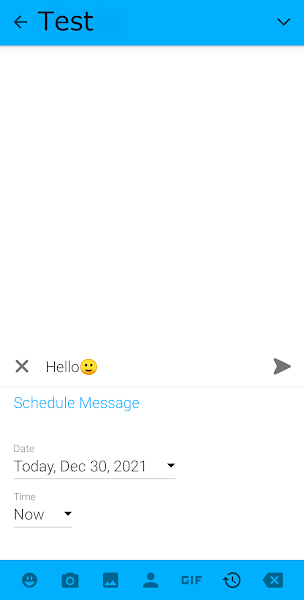
One of Textra’s most practical features is the ability to schedule messages for future delivery. You can specify both the date and time, making it ideal for sending birthday messages, reminders, or time-sensitive texts without having to remember to do it manually.
4. Clean, Simple Interface
Despite its rich feature set, Textra maintains a straightforward interface. All conversations are clearly separated and easy to navigate, keeping the learning curve low even for first-time users.
Read Also: How to Solve the ‘Storage Running Out of Space’ Problem on Android
How to Use Textra on Android
Getting started with Textra is straightforward. Below is a step-by-step walkthrough for sending your first message and customising the app to your preference.
Sending Your First Message
- Download the Textra App from the Google Play Store.
- Open the app and tap the START USING TEXTRA button.
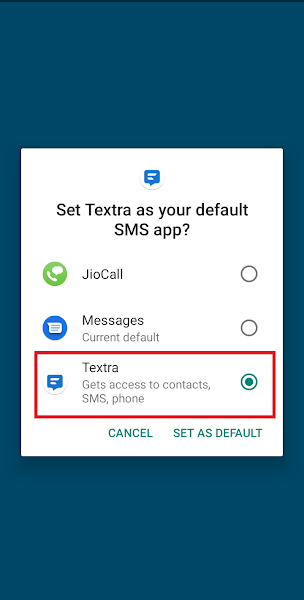
- You will be prompted to set Textra as your phone’s default messaging app. Select Textra from the list and tap SET AS DEFAULT. This step is required for Textra to send and receive SMS correctly.
- All existing SMS conversations on your phone will now load automatically within Textra.
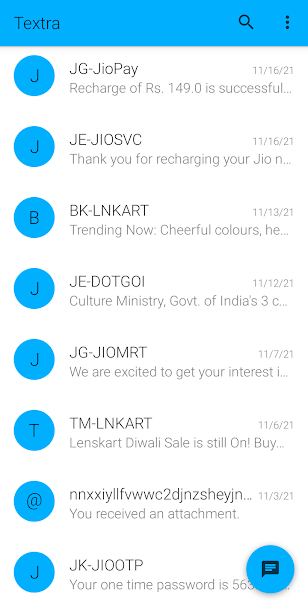
- Use the search bar to find the contact you want to message.
- Tap the contact’s name to open the conversation thread.
- Type your message in the input field at the bottom of the screen.
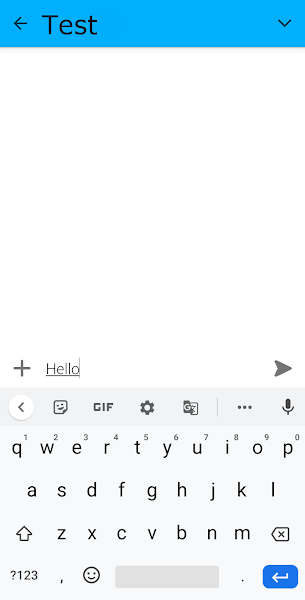
- To attach media — photos, videos, GIFs, or emojis — tap the + button on the left side of the message field.
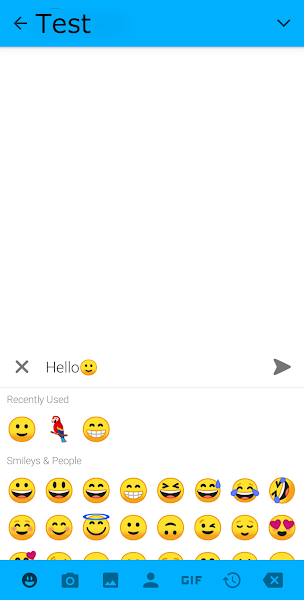
- Tap the Send button on the right side of the input field to dispatch your message.
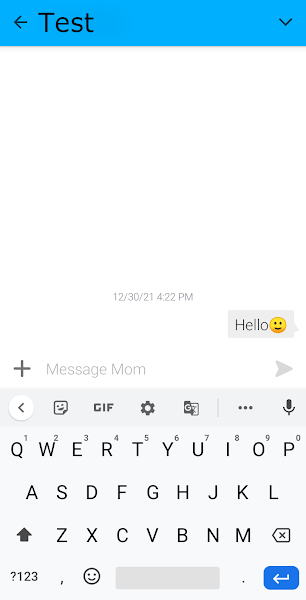
- Your first SMS has been sent successfully via Textra.
Customising the Appearance of Textra
Textra provides an extensive set of visual customisation options. Follow these steps to personalise the app’s look and notification behaviour:
- Open the Textra app.
- Tap the three-dot menu in the upper-right corner and select Settings.
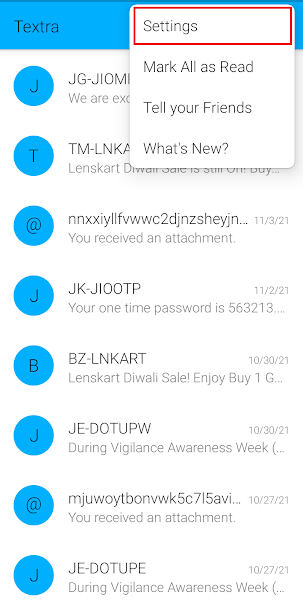
- Tap Customize Look.
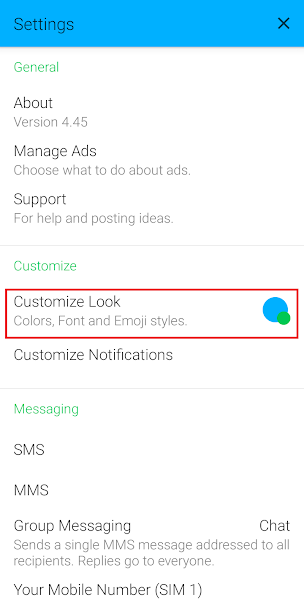
- The Customize Look page exposes the following options:
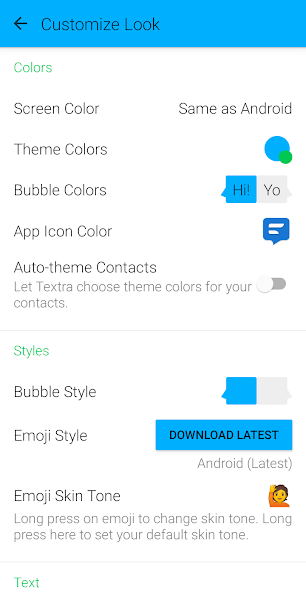
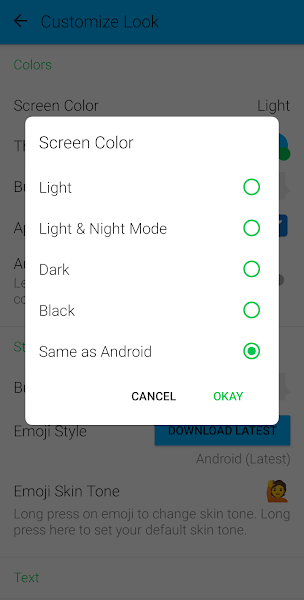
- Screen Color: Switch between Light and Dark mode.
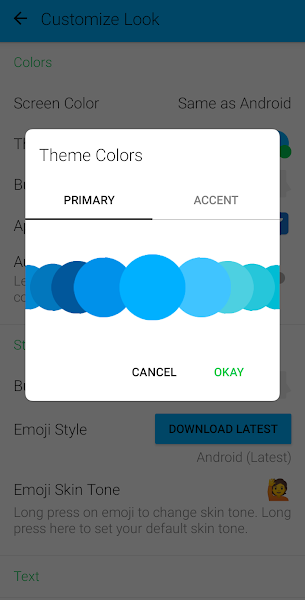
- Theme Colors: Select the primary accent colour used throughout the app.
- Bubble Colors: Customise the colour of sent and received message bubbles.
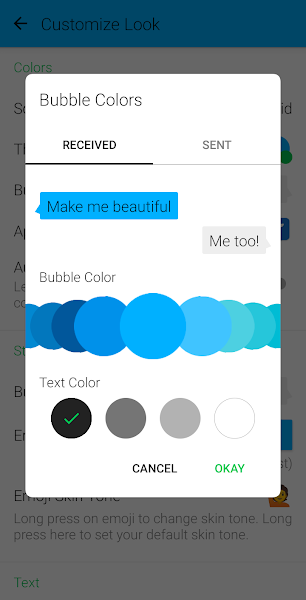
- Bubble Style: Choose the shape of the message bubbles.
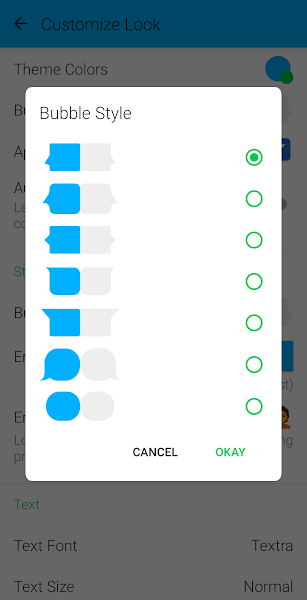
- Emoji & Font Style: Customise the emoji set and font used throughout the app.
- Screen Color: Switch between Light and Dark mode.
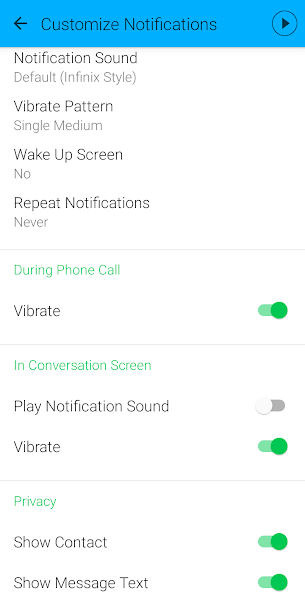
- Return to Settings and tap Customize Notifications.
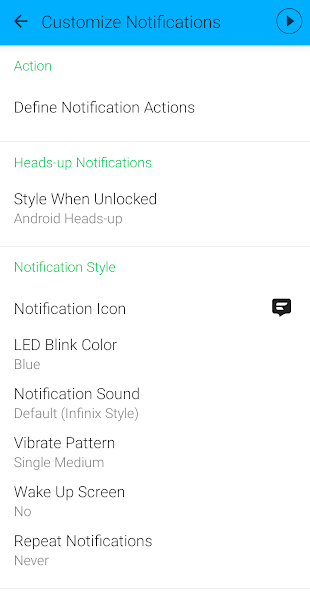
- Define Notification Actions: Configure which action buttons appear in the notification shade, including the Heads-Up buttons — the quick-reply actions that appear below incoming notifications. You can choose between Android-style and Textra-style button sets.
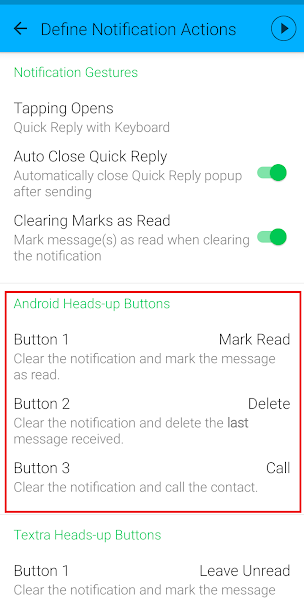
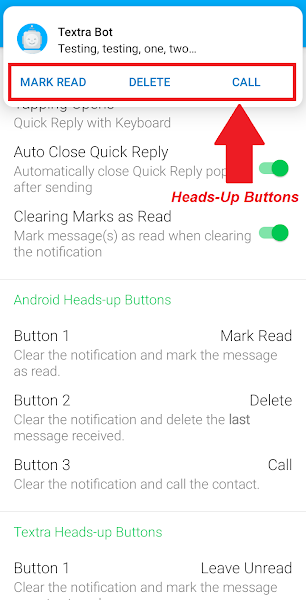
- Style When Unlocked: Control which Heads-Up button set is active when your screen is unlocked.
- LED Indicator, Screen Wake & More: Fine-tune LED notification colours, screen wake-up behaviour on incoming messages, and other advanced notification settings.
- Define Notification Actions: Configure which action buttons appear in the notification shade, including the Heads-Up buttons — the quick-reply actions that appear below incoming notifications. You can choose between Android-style and Textra-style button sets.
Read Also: What is GIMP? A Complete GIMP Tutorial
Textra vs Google Messages: Which Should You Use?

Google Messages (formerly Android Messages) is a first-party SMS/MMS client developed by Google. Because it’s backed by one of the world’s most trusted technology companies and is deeply integrated with Android, it has become the de facto standard on most Android devices.
Google Messages goes beyond basic SMS by integrating Google Search, Google Assistant, and RCS (Rich Communication Services) support. Practically, this means you can share your live location, look up nearby restaurants, and get weather updates — all from within a conversation thread.
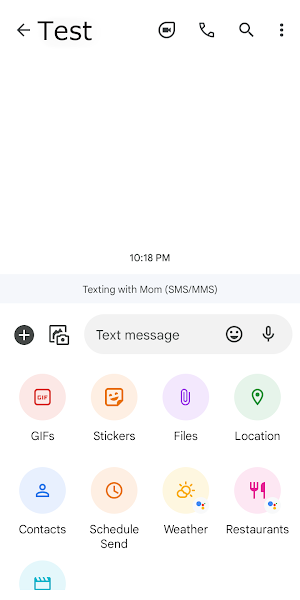
Google Messages also has a significantly more robust spam protection system. It cross-references incoming messages against a database aggregated from other users, providing spam flags and sender reputation data. By comparison, Textra’s spam controls are limited to manual contact blocking.
Google Messages also auto-categorises incoming messages — separating OTPs, promotions, and transactions into dedicated views, with options like auto-deleting OTP messages after 24 hours.
Where Textra pulls ahead is in visual customisation and interface simplicity. If you want fine-grained control over the appearance of your messaging app — per-contact themes, bubble styles, custom fonts — Textra offers capabilities that Google Messages simply doesn’t match. It’s also a lighter, more focused app for users who primarily need a reliable SMS/MMS client without additional Google service integration.
In summary: choose Google Messages if you want a feature-rich, deeply integrated experience; choose Textra if you prioritise customisation, simplicity, and a distraction-free SMS interface.
Frequently Asked Questions About Textra
Q: Why am I unable to send GIFs and other media using Textra?
A: First, verify your internet connection. If that’s working correctly, check whether your mobile carrier supports MMS. Some network plans or prepaid carriers restrict MMS by default — contact your carrier to confirm.
Q: What should I do if Textra fails to send an SMS?
A: Check your internet connection and confirm you have an active SMS plan. If both are fine, verify that the recipient’s number is able to receive messages. As a last resort, force-close the app from your recent apps tray and relaunch it.
Q: Can I use Textra on a PC or Mac?
A: Textra does not have a native desktop client. However, you can run it on a computer by installing an Android emulator such as BlueStacks, then installing Textra within the emulator environment.
Q: What is Textra Pro?
A: Textra Pro is the paid upgrade tier for the app. It removes all in-app advertisements and unlocks a few additional premium customisation options. It is a one-time purchase available from within the app.
Q: How do I set Textra as my default messaging app?
A: The default app prompt appears automatically when you tap START USING TEXTRA on first launch. If you missed it, navigate to Settings > Apps & Notifications > Default Apps > Messaging App > Textra.
Conclusion
Textra is a well-built, highly customisable Android SMS and MMS client that serves as a solid alternative to your phone’s default messaging app. Its scheduling feature, per-contact theming, and clean interface make it a compelling choice for users who want more control over their SMS experience without a steep learning curve.
That said, if you need advanced spam protection, Google Assistant integration, RCS support, or intelligent message categorisation, Google Messages remains the more feature-complete option.
Have a question about Textra or run into a specific issue? Drop it in the comments below — happy to help.