How to Use Google Meet
For an early-stage Indian startup team, video conferencing is a daily operational need — investor calls, client pitches, team standups, vendor discussions. Most founders either default to whatever platform their investor prefers or pay for Zoom without questioning whether they need to.
Here’s the case for pausing before you pay: Google Meet’s free plan offers 60-minute group meetings for up to 100 participants, runs entirely in-browser with no download required, integrates natively with Google Calendar and Gmail, and costs ₹0. For teams already using Google Workspace, Meet is already included in what you’re paying.
This guide covers everything you need to use Google Meet effectively: what the free plan actually gives you, how to host a meeting on PC and mobile, how to fix the most common problems people encounter, and an honest comparison with Zoom so you can make the right call for your team.
What is Google Meet?
Source: Google Meet
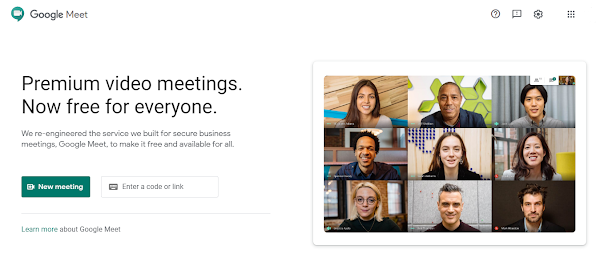
Google Meet is a free video conferencing service available on web, Android, and iOS. It’s part of Google Workspace and integrates directly with Gmail, Google Calendar, Google Docs, Sheets, and Slides — meaning you can start or join a meeting without leaving your existing workflow.
Unlike Zoom, which requires a desktop app for the full feature set, Google Meet works completely in your browser. Click a link and you’re in — no downloads, no account required for participants. This single difference eliminates a meaningful amount of friction for external calls with clients, investors, or vendors who aren’t set up on your preferred platform.
As of 2025, Meet has integrated Gemini AI across higher-tier plans, adding AI-generated meeting summaries, live transcription, noise cancellation, and translated captions in 65+ languages.
Google Meet Free Plan — What You Actually Get
The most important thing to understand before choosing Meet over a paid alternative: here’s exactly what the free plan includes as of 2025.
- Participants: Up to 100 per meeting
- Time limit: 60 minutes for group meetings (3+ people). No time limit for 1:1 calls.
- Screen sharing: Yes — included
- Live captions: Yes — AI-generated
- Virtual backgrounds: Yes — limited selection
- In-meeting chat: Yes — included
- Recording: Not available on the free plan
- Breakout rooms / polls / Q&A: Not available on the free plan
- Noise cancellation: Not available on the free plan
If you need longer meetings, recording, or advanced features, Google Workspace paid plans start at $7/user/month (Business Starter — removes time limit, adds more storage) and $14/user/month (Business Standard — adds recording, breakout rooms, and Gemini AI features).
For most Indian startup teams at the early stage: the free plan covers team standups, client calls, and investor meetings comfortably. The 60-minute limit is the only practical constraint, and most calls don’t hit it.
Google Meet vs Zoom — Which Should Indian Startup Teams Use?
This is the question most founders are actually asking. Here’s an honest comparison on the metrics that matter:
Free plan time limit: Meet gives you 60 minutes for group calls; Zoom gives you 40 minutes. Meet wins for free users.
Browser access: Meet works fully in-browser with no limitations. Zoom’s browser client is restricted — the full feature set requires the desktop app. For external participants joining a one-time call, Meet creates significantly less friction.
Participant capacity: Both free plans cap at 100. On paid plans, Zoom scales higher at lower price points for large webinars. Zoom has an edge for enterprise-scale events over 500 people.
Cost for Google Workspace teams: If your team already pays for Google Workspace (₹500–1,200/user/month depending on tier), Meet is included. Zoom is priced separately — starting at approximately ₹1,000–1,400/user/month for the Pro plan. For teams already in the Google ecosystem, Meet’s effective cost is zero.
AI features: Both platforms have integrated AI at similar price points. Meet offers Gemini AI with translated captions in 65+ languages on Business Standard; Zoom launched real-time speech-to-speech translation in late 2025. Roughly comparable at equivalent pricing.
Ease of use: Meet is simpler and more approachable for first-time users. Zoom has more configuration options and a steeper learning curve — which matters when your client or investor is trying to join a call on five minutes’ notice.
The bottom line: Choose Meet if your team lives in Google Workspace, you want zero friction for external participants, or you’re not ready to add another SaaS subscription. Choose Zoom if you need large-scale webinars, Zoom-specific integrations, or your investors and clients are already Zoom-native and switching would create friction for them.
Pros and Cons of Google Meet for Startup Teams
Pros
No software install required — for anyone. Meet works in any modern browser. Your clients, investors, and vendors don’t need a Google account or any download. They click your link and they’re in. For external calls with people who aren’t set up on your platform, this eliminates a real barrier.
100 participants on the free plan. Covers team meetings, client calls, investor presentations, and online events without upgrading. Zoom’s free plan also caps at 100 but with only 40 minutes.
Deep Google Workspace integration. Calendar events auto-generate Meet links. You can start a meeting directly from a Google Doc or Gmail. For teams living in Google Workspace, this integration is seamless rather than bolted on.
Strong security by default. All Meet calls are encrypted in transit. Participants can only enter if the host admits them. Hosts can mute or remove anyone at any time. For investor calls and confidential client discussions, this matters.
No additional cost for Workspace users. If your team is on any Google Workspace plan, Meet is included. It’s not a separate line item in your SaaS budget.
Cons
60-minute group meeting limit on free plan. The most common frustration. For longer sessions — extended workshops, training calls, detailed due diligence meetings — you’ll hit the limit or need to restart the call.
No recording on free or Starter plans. Recording is locked behind Business Standard ($14/user/month). If you need to record investor pitches, client meetings, or team training sessions, you’ll need to upgrade or use a third-party screen recorder.
Higher data consumption. Meet’s HD video quality uses more data than some competitors. On metered mobile connections — a real consideration for Indian startup founders conducting calls from areas with variable connectivity — this can cause quality issues. (The fix is covered in the troubleshooting section below.)
Mobile app lags behind the web version. The browser version of Meet is consistently more stable and feature-complete than the mobile app. For important meetings, browser-based is always preferable when you have a choice.
How to Host Your First Google Meet
On PC (Browser)
- Open any browser and go to meet.google.com.
- Click New meeting.
- Choose from three options:
- Get a meeting link to share: Generates a link you can send to participants in advance — useful for scheduling recurring team meetings or sending investor invites ahead of time.
- Start an instant meeting: Starts a meeting immediately. Use for spontaneous calls.
- Schedule in Google Calendar: Creates a calendar event with a Meet link auto-attached — the best option for formal or recurring meetings where you want participants to have a calendar reminder.
- Select Start an instant meeting → click Join now.
- A dialog box shows your meeting link. Share this with participants via WhatsApp, email, or wherever your team communicates.
- Participants click the link, request to join, and you admit them from the waiting room.
On Mobile (Android or iOS)
- Open the Google Meet app on your phone.
- Tap New meeting.
- Select Start an instant meeting — the meeting opens and displays a link at the centre of the screen.
- Share the link with your participants and admit them when they request to join.
Pro tip: The cleanest way to run recurring team meetings is through Google Calendar. Create a recurring calendar event and click Add Google Meet video conferencing. The same Meet link is auto-included in every calendar invite — participants always have the link without you needing to share it again.
Common Google Meet Problems — Fixed
Meeting is slow or buffering on a poor internet connection
Source: Google Meet
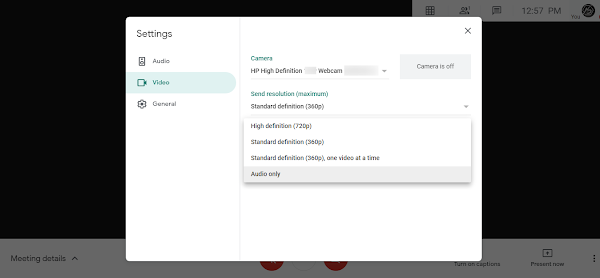
On slow mobile data or spotty connections — particularly relevant for calls conducted while travelling or from Tier 2/3 cities — drop Meet’s video quality:
- In a meeting, click the three-dot menu → Settings.
- Go to the Video tab.
- Under Send resolution and Receive resolution, drop both to 360p.
- For the lowest possible data usage, switch to Audio only — removes all video streams and lets you participate on even very poor connections.
Camera or microphone not working
Source: Google Meet
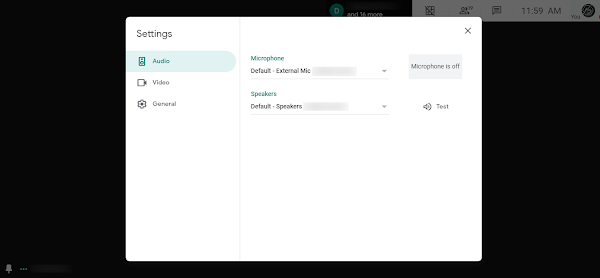
If your camera or mic works in other apps but not Meet, it’s almost always a device selection or permissions issue:
- In a meeting, click the three-dot menu → Settings.
- Go to the Audio tab — confirm the correct microphone is selected.
- Go to the Video tab — confirm the correct camera is selected.
- If the issue persists, check browser permissions: click the lock icon in the address bar and ensure camera and microphone access is set to Allow for meet.google.com.
Where is the chat in the Google Meet mobile app?
Tap the three-dot menu in the lower-right corner during a meeting and select In-call messages. It’s a couple of taps deeper than it was in earlier app versions.
How do I see all participants at once?
Google Meet now has this built in natively. During a meeting, click the Change layout button (grid icon at the bottom) and select Tiled. Adjust how many participants are shown simultaneously using the slider that appears.
Can I use Google Meet on an older Android phone?
The app requires Android 6.0 (Marshmallow) or above. On older versions, join through Chrome: tap the menu (three dots) → Desktop site → paste the meeting link into the address bar. The web version loads and allows you to join.
Frequently Asked Questions
Q: How long can a Google Meet last for free?
A: Free group meetings (3+ participants) have a 60-minute limit. One-on-one calls have no time limit on the free plan. To remove the group meeting limit, you need at least a Google Workspace Business Starter plan ($7/user/month).
Q: How many people can join a Google Meet for free?
A: Up to 100 participants on the free plan. Paid plans scale to 150 (Business Standard), 500 (Business Plus), and 1,000 (Enterprise).
Q: Does Google Meet record meetings on the free plan?
A: No. Recording is available from Business Standard ($14/user/month) and above. On a free account, use a third-party screen recorder or the built-in screen recording feature on your device.
Q: Is Google Meet safe and secure?
A: Yes. All Meet calls use encryption in transit. Participants cannot join without being admitted by the host. End-to-end encryption is available for 1:1 calls. Hosts can mute or remove any participant at any time.
Q: Can someone join Google Meet without a Google account?
A: Yes — participants join via a meeting link without needing a Google account. They may need the host to admit them from the waiting room. No download or installation required on desktop.
Q: Is Google Meet better than Zoom for Indian startups?
A: For teams already on Google Workspace, Meet adds zero additional cost and has a longer free meeting limit (60 min vs 40 min). It’s the stronger choice for most Indian startup teams at the early stage. Choose Zoom only if you need large-scale webinars or Zoom-specific integrations that your clients or investors depend on.
Q: Does Google Meet work without the app?
A: Yes — on desktop, Meet works fully in any modern browser without installing anything. On mobile, the app provides the best experience but the browser version also works.
Conclusion
Google Meet is one of the most practical free tools available to Indian startup teams — and one of the most consistently underused. The 60-minute free group limit is worth planning around, but for the majority of calls — team standups, client meetings, investor calls, vendor discussions — it’s more than enough.
The things worth remembering: use the browser version on desktop for important meetings, drop video quality to 360p on slow connections, and check device settings first if camera or mic issues come up. Everything else is covered by the tool itself.
Have a specific Google Meet problem that isn’t covered here? Drop it in the comments — happy to help troubleshoot.
Building a distributed or hybrid startup team in India?
Google Meet is your video layer. But remote team infrastructure for Indian startups goes beyond video calls — async communication, shared documentation, project visibility, and file collaboration all need their own tool decisions. Most early-stage founders either over-spend (enterprise tools before they need them) or under-invest (trying to run everything through WhatsApp threads and email chains).
We’ve put together a practical guide on building a lean, mostly-free remote collaboration stack specifically for Indian startup teams — covering async and sync communication, documentation, project management, and file sharing without a large SaaS budget.
📂 Category: Startup Tools
🏷️ Tags: free-tools, google-tools, productivity-tools, remote-team, bootstrapped, india-startup
Related Articles
Read next
How to perform Google Image Search
You’ve probably used Google Image Search dozens of times without knowing half of what it can do. Most people treat […]
Read More
How to Resize an Image in GIMP
Got an image that’s too large to upload, or too small to print properly? Whether you’re prepping visuals for a […]
Read More
How to remove background in GIMP?
We’ve all been there — you’ve got a logo, a product photo, or a portrait and you need the background […]
Read More